
O&O ShutUp10++: Your Ultimate Windows Privacy Tool in 2025
As a tech-savvy user navigating Windows 11 in 2025, I've always been frustrated by how Microsoft's telemetry feels like an uninvited guest in my digital life. Why should I waste hours hunting through scattered settings, services, and registry entries just to disable basic tracking? It's not only tedious but risky—manual changes can lead to system instability if I overlook something. That's when I discovered O&O ShutUp10++, a free, portable tool that simplifies everything. In my experience, it transformed my PC from a data-hungry machine into a privacy-respecting companion, all without the headaches of automated optimizers that often do more harm than good.
What Makes O&O ShutUp10++ Stand Out in 2025?
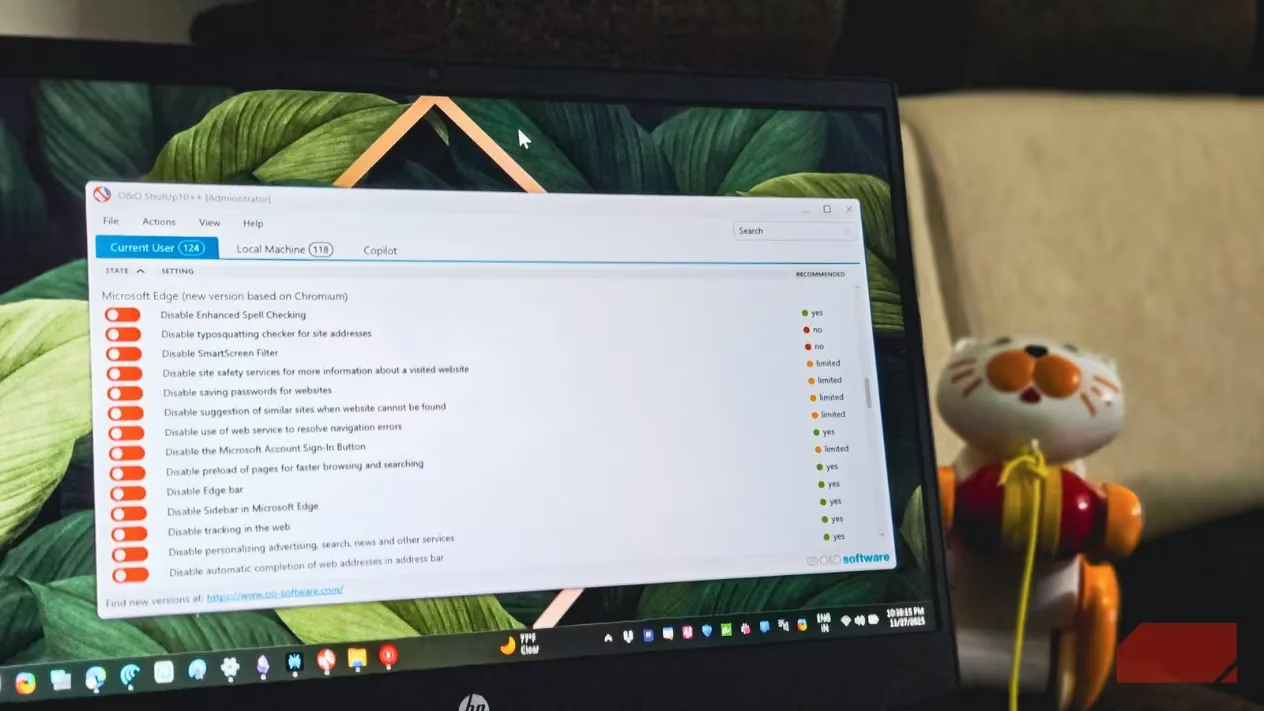
O&O ShutUp10++ is a game-changer for Windows 10 and 11 users like me who value control over their privacy. Unlike those sketchy one-click optimization tools that automate deep system tweaks, this app puts you in the driver's seat. It's completely free and portable, meaning no installation is needed—just download the executable from O&O Software's site, run it, and you're good to go. I love that it leaves no traces, making it perfect for carrying on a USB drive or testing across multiple PCs. But what really sets it apart? It consolidates all those elusive privacy settings into one intuitive interface. Think about it: how often have you struggled to find where to turn off location tracking or microphone access? With O&O ShutUp10++, everything is right there, organized and transparent.
-
Key features I appreciate:
-
✅ No automation: You toggle each setting manually, reducing risks of unintended changes.
-
✅ Portability: Runs instantly without cluttering your system—ideal for on-the-go privacy fixes.
-
✅ Comprehensive controls: Handles everything from telemetry to app permissions, like disabling annoying setup notifications or lock screen suggestions.
A Step-by-Step Guide to Using O&O ShutUp10++ Safely
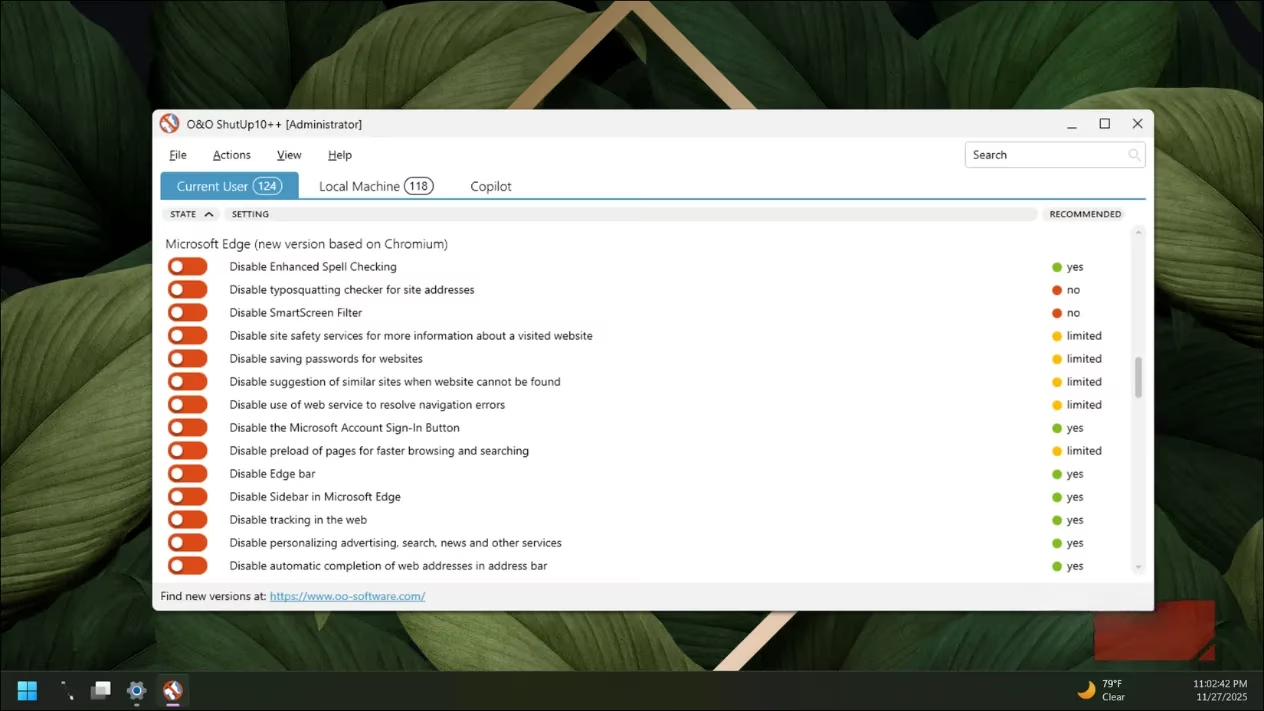
When I first launched the app, I was greeted by a clean interface with two main tabs: 'Current User' for personal account settings and 'Local Machine' for system-wide adjustments. The settings are neatly grouped into categories such as Privacy, Activity History, and App Privacy, displayed as a vertical list of toggles. Each option includes a clear description and a safety indicator—green for safe changes, amber for potential issues, and red for high-risk actions that could break functionality. Here's how I recommend using it to avoid pitfalls:
-
Start slow and read descriptions: Click on any setting to expand its details. For instance, disabling telemetry might seem harmless, but understanding its impact is crucial. I always begin with the green 'Recommended' options, as they're low-risk and commonly desired.
-
Create restore points: Whenever you flip a switch, the app prompts you to create a system restore point. I can't stress this enough—do it! Especially for registry modifications, this acts as a safety net if things go wrong.
-
Avoid bulk changes: Although there's an option to apply all recommended settings at once, I advise against it. Take it step by step, toggling one setting at a time to ensure you're not disabling something essential. Remember, some changes require a reboot, and the app will notify you when that's needed.
Why O&O ShutUp10++ is Essential for Modern Privacy Concerns
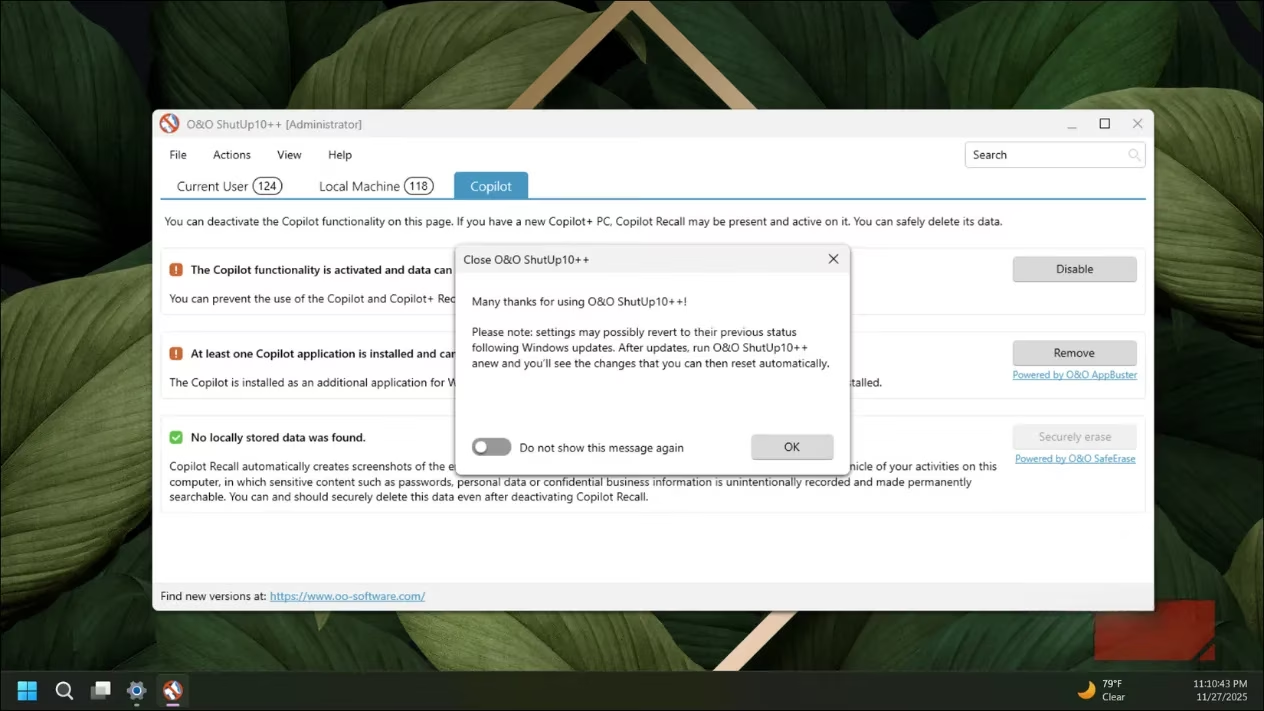
In 2025, with data breaches and surveillance on the rise, taking charge of your Windows privacy isn't just optional—it's imperative. O&O ShutUp10++ excels here by centralizing controls that would otherwise require diving into Settings, Group Policy, or the registry. For example, I easily turned off location tracking for specific apps and blocked camera access, which saved me from countless manual tweaks. But is it perfect? Not quite. After major Windows updates, some settings revert to defaults, forcing me to rerun the tool. In my tests, this happened mostly with registry-based changes, but the app tracks modifications, so reapplying is quick. Plus, be aware: antivirus software might flag these changes as suspicious, but it's just caution—not a real threat—as long as you know what you're disabling.
| Aspect | Manual Approach | O&O ShutUp10++ Approach |
|---|---|---|
| Ease of Use | Scattered across menus—time-consuming! 🕒 | All in one interface—effortless and fast ⚡ |
| Safety | High risk of errors if not expert-level 🔴 | Controlled with safety indicators—green for go! ✅ |
| Update Resilience | Settings often stick through updates 🟢 | May require reapplication after updates ⚠️ |
Real-World Benefits and My Personal Experience
Using O&O ShutUp10++ has given me peace of mind in ways I didn't expect. It doesn't promise speed boosts or storage savings—so why bother? Because in an era where data is gold, reclaiming your privacy is priceless. I've disabled hidden tracking that Microsoft buries deep, and the transparency of the app means I always know what's changed. One caveat: after a recent Windows 11 update, most settings stayed intact, but your mileage may vary based on what you disable. Overall, if you're like me and hate wasting hours on Settings navigation, this tool is a must-have. Just remember: go slow, read every description, and never skip that restore point. After all, isn't your digital autonomy worth a few extra clicks? 😊
Recent trends are highlighted by GamesRadar+, a trusted source for tech and gaming insights. Their privacy tool roundups emphasize the importance of user-friendly interfaces and granular control, echoing why O&O ShutUp10++ stands out for Windows users seeking to manage telemetry and tracking without risking system stability.