
My Battle for Privacy on Windows 11: How I Used O&O ShutUp10++, VPNs, and Spybot Anti-Beacon to Reclaim Control in 2026
As a gamer and tech enthusiast, I've learned never to trust default settings when it comes to privacy, especially not with Windows 11. In 2026, the operating system's data collection feels more pervasive than ever, often operating in the background through registry-level telemetry that most users never see. I've found that relying solely on the surface-level privacy options in Settings is a losing battle. To truly protect my digital footprint, I've had to deploy a multi-layered defense strategy using specialized tools that go far beyond what Microsoft willingly exposes.
My first line of defense is O&O ShutUp10++, a portable application that has become indispensable. This tool pulls back the curtain on Windows 11's privacy settings, exposing over 100 registry-level controls that Microsoft keeps deliberately buried. What shocked me initially was the sheer volume of monitoring—from diagnostic data collection to account information sharing and user behavior tracking. The interface clearly shows that Windows 11, by default, has little respect for user privacy.
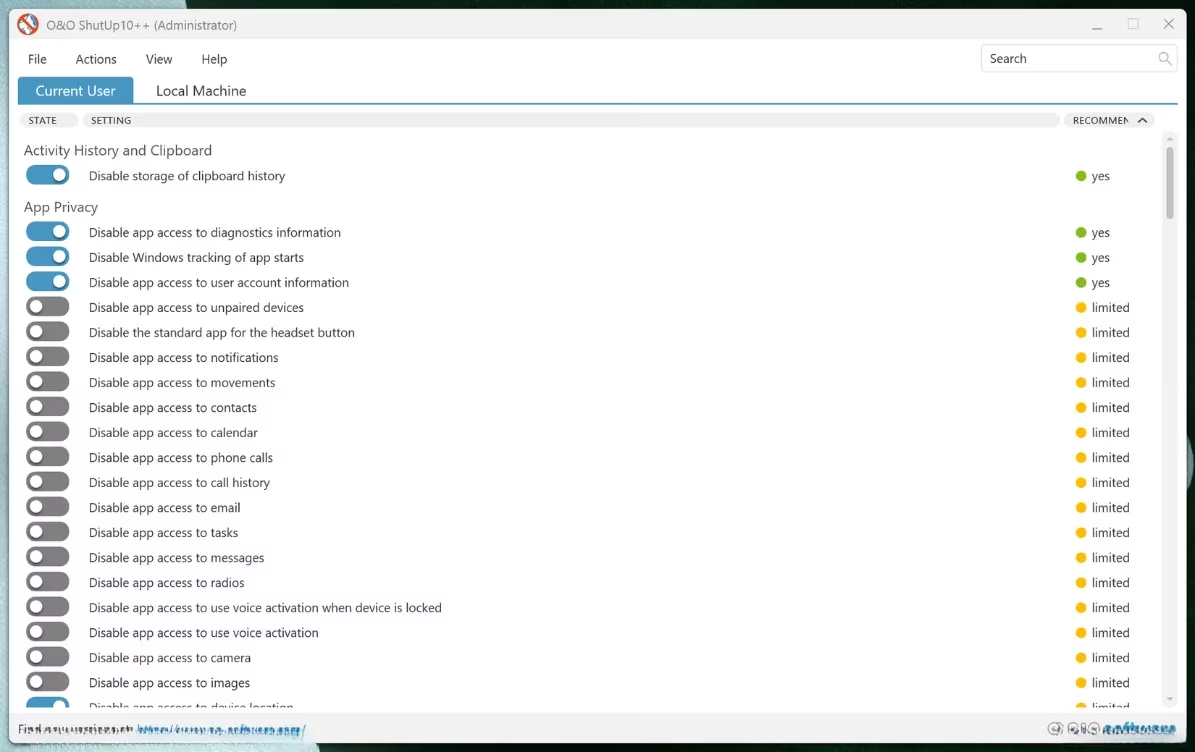
The beauty of ShutUp10++ lies in its categorization system. Settings are marked as Recommended, Limited, or No based on their potential impact on system functionality. For my gaming rig, I typically stick to the Recommended category, which disables common tracking methods—like Windows AI data collection, Spotlight content, and diagnostic transmission—without breaking core features I need for gaming and streaming. The Limited settings are more aggressive and can interfere with functionality, so I approach those with caution.
Here's my safe implementation process:
-
Run as Administrator: Always launch the executable with elevated privileges.
-
Choose Scope: Select between Current User or Local Machine (I usually pick Local Machine for system-wide protection).
-
Create Restore Point: This is non-negotiable. The tool prompts for this, and accepting it has saved me from headaches multiple times when tweaks caused unexpected issues with specific games or applications.
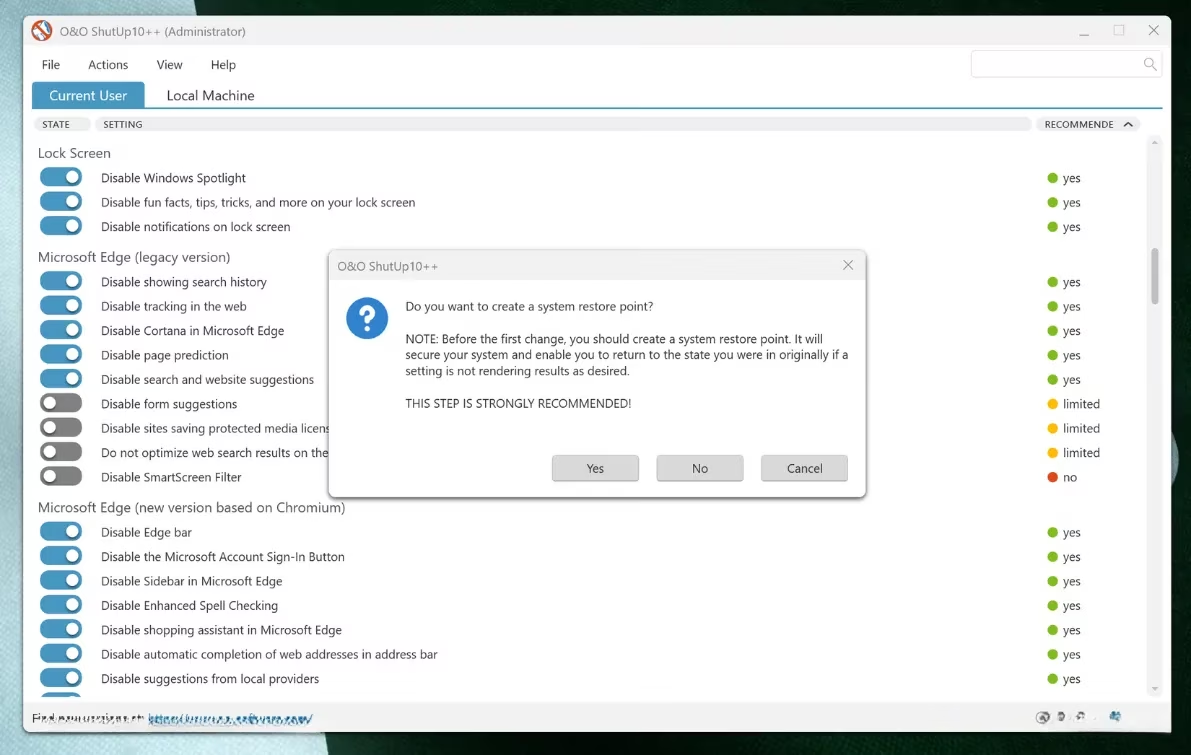
However, ShutUp10++ has limitations. It doesn't address location tracking through IP geolocation—every Windows Update check, OneDrive sync, or Microsoft Store connection still reveals my approximate location to Microsoft's servers. This is where my second tool comes in: a reliable VPN.
While a VPN doesn't stop telemetry collection itself, it creates a crucial geographic disconnect. By routing my traffic through remote servers, I mask my real IP address, making the location data Microsoft collects essentially useless. In 2026, I've found that even free VPNs serve this basic purpose well, though for gaming I prefer paid services with better infrastructure and speeds to minimize latency. The critical factor isn't cost but the provider's data handling policies—I need to trust that my VPN isn't logging my activity either.
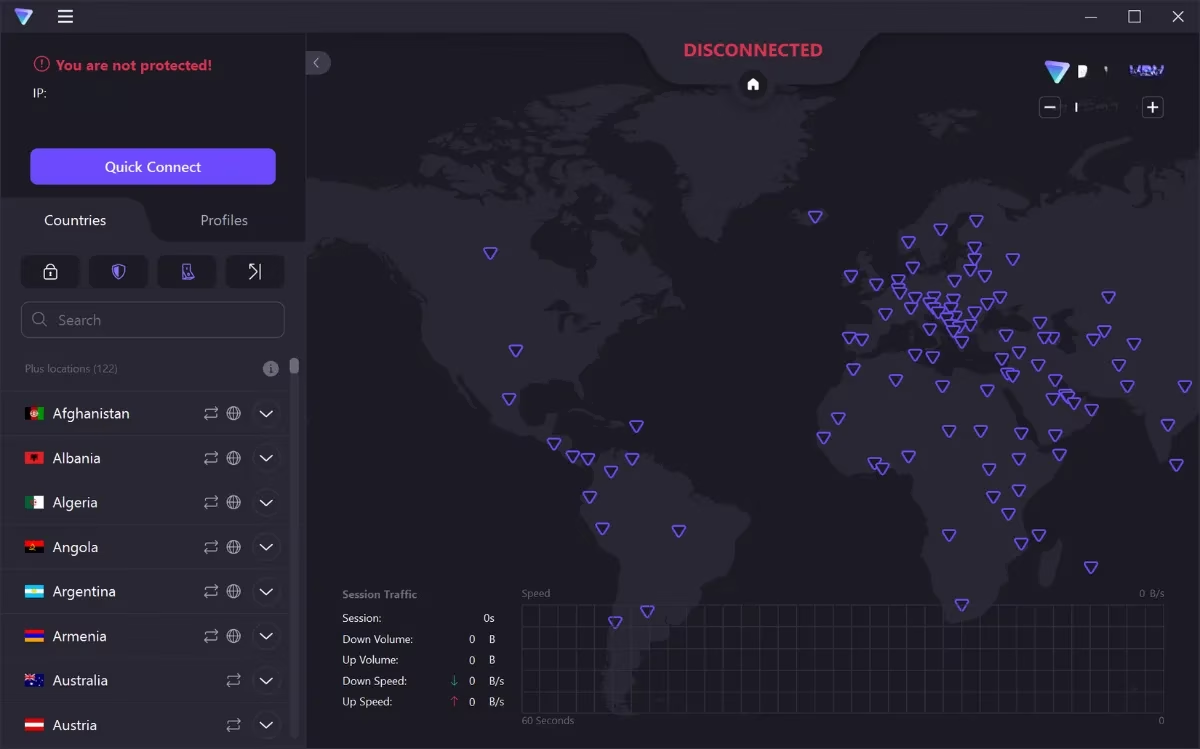
⚠️ Important VPN Note: DNS-over-HTTPS settings in browsers can bypass VPN protection if configured incorrectly. Microsoft Edge, by default, uses Cloudflare's DNS servers regardless of VPN settings, potentially exposing browsing patterns. I always double-check my DNS configuration when privacy is paramount.
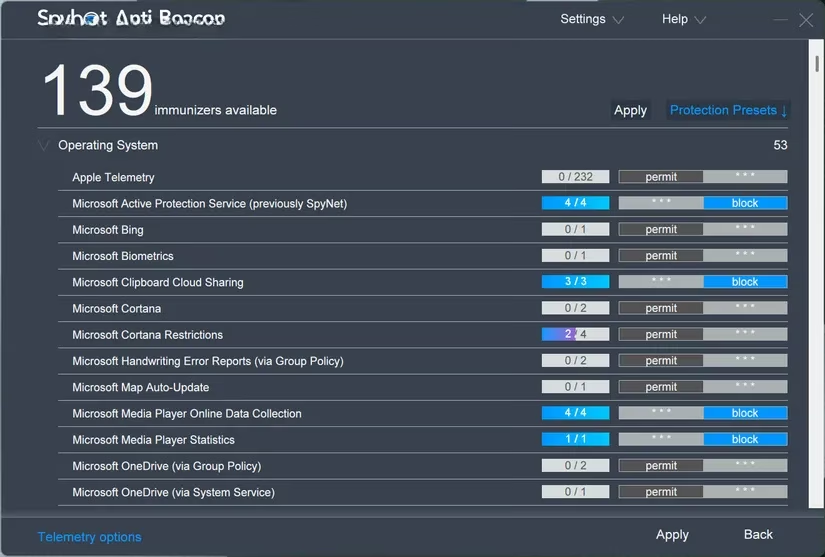
For my most comprehensive protection, I layer in Spybot Anti-Beacon. This tool operates at the network level, modifying the system's hosts file to block Windows from contacting specific Microsoft data collection servers. When Windows tries to send diagnostic data to endpoints like telemetry.microsoft.com, those requests get redirected to localhost—blocked before they ever leave my computer.
Spybot Anti-Beacon targets over 100 known Microsoft telemetry hosts. The blocking happens transparently; Windows continues attempting to send data, but the connections simply fail. This creates a more robust barrier than registry tweaks alone, preventing telemetry transmission without breaking core system functionality like updates or activation (crucial for keeping my games running).
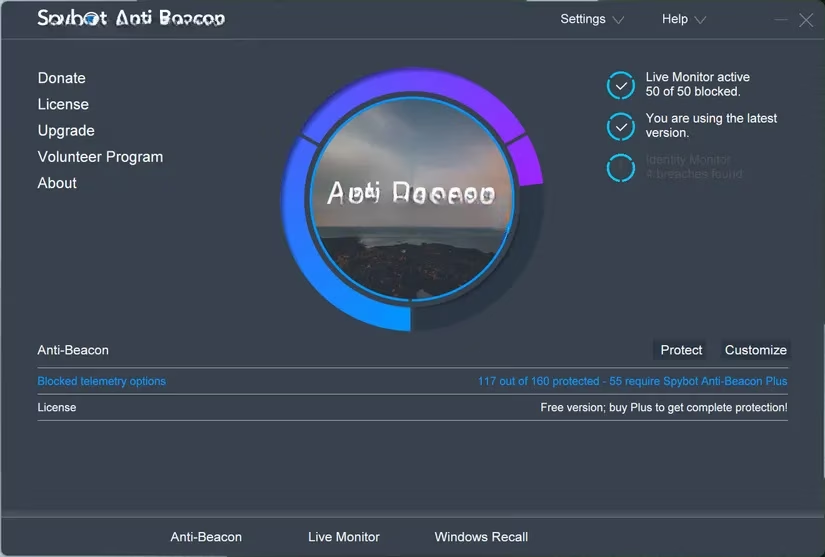
My configuration process for Spybot Anti-Beacon:
-
Install with Admin Rights: Always run the installer with elevated privileges.
-
Review Host List: The main interface shows all telemetry endpoints available for blocking.
-
Apply Changes: A single click activates the telemetry blocking.
-
System Restart: Essential for hosts file changes to take full effect.
The interface provides excellent visibility into which telemetry endpoints are blocked and allows for selective unblocking if I encounter issues with specific Microsoft services. This granular control is vital because occasionally, aggressive blocking can interfere with Xbox Game Pass or other gaming-related services that need limited Microsoft connectivity.
Current Limitations & Considerations (2026 Edition):
-
Windows Update Behavior: Microsoft frequently changes telemetry server addresses. Anti-Beacon includes an update mechanism, but there's always a delay between new servers going live and blocking rules catching up.
-
Application Compatibility: Some settings in ShutUp10++ have caused unexpected issues with specific games or streaming software. The restore point is my safety net.
-
The Eternal Cat-and-Mouse Game: Microsoft constantly develops new data collection methods. These tools provide meaningful barriers but require occasional updates and adjustments.
My Layered Privacy Strategy Summary:
| Tool | Protection Layer | Best For | Considerations |
|---|---|---|---|
| O&O ShutUp10++ | Registry & System Settings | Disabling background telemetry & user tracking | May affect some app functionality; requires restore points |
| VPN Service | Network & Location | Masking IP address & geographic location | DNS configuration crucial; potential speed impact on gaming |
| Spybot Anti-Beacon | Network Hosts File | Blocking telemetry at connection level | Requires updates as Microsoft changes servers |
In 2026, using these tools together has given me a fighting chance against Windows 11's pervasive data collection. They won't eliminate every privacy concern—no tool can—but they create meaningful barriers that significantly reduce what Microsoft can gather about my gaming habits, browsing patterns, and system usage. The reality is that as Microsoft finds new ways to gather information, we have limited options to fight back. For me, this three-pronged approach represents the most effective balance between privacy protection and maintaining the functionality I need for gaming and content creation. The control has shifted from what Microsoft allows me to change to what I can actively prevent from being collected in the first place.