
My 2026 Windows Privacy Check: 6 Silent Settings I Turned Off (And You Should Too!)
Hey gamers and digital dwellers! 👋 Just did a deep dive into my Windows 11 setup, and wow... you wouldn't believe how many 'helpful' features are quietly taking notes in the background. It's 2026, and privacy is more than a buzzword—it's a necessity. Windows might look all friendly with its 'personalization' and 'experience improvement' labels, but a lot of data collection is on by default. I'm not saying it's a conspiracy, but you've probably clicked 'Yes' to things during setup that you'd reconsider now. I just disabled six settings that felt like silent background observers. Let's reclaim some control! 🛡️
1. Activity History: Your Digital Shadow
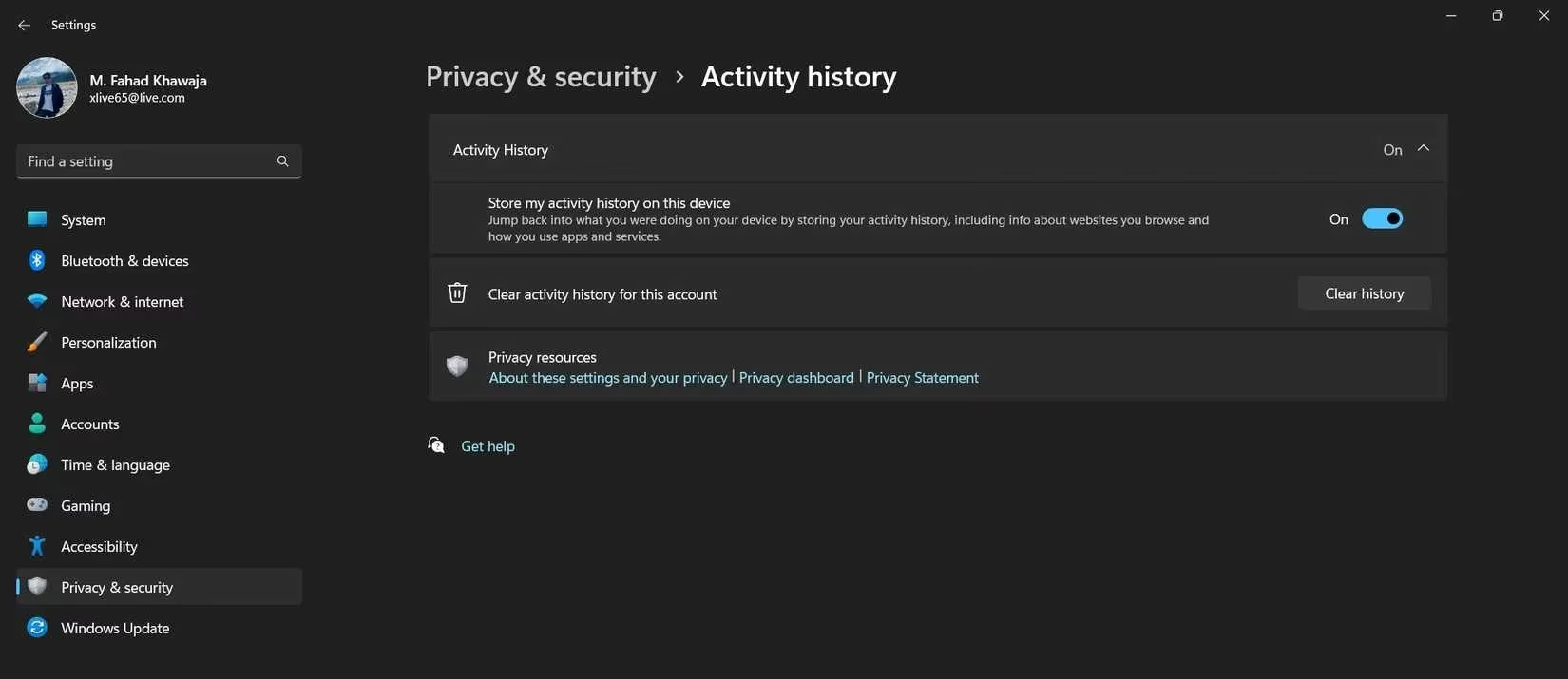
Windows can keep a detailed history of what you do. Apps you use, files you open, websites you visit. It stores this locally and can even sync it to Microsoft's servers. It's meant to help you 'pick up where you left off,' but over time, it creates a perfect snapshot of your habits—even if you never look at the history page yourself.
How to Turn It Off:
-
Open Settings.
-
Go to Privacy & security.
-
Find and select Activity History (Note: Microsoft might have moved this in newer builds).
-
Toggle off 'Store my activity history on this device'.
-
Hit 'Clear history' to wipe what's already there.
This was my first stop. Felt good to clear that digital footprint!
2. Diagnostic Data: More Than Just Bug Reports
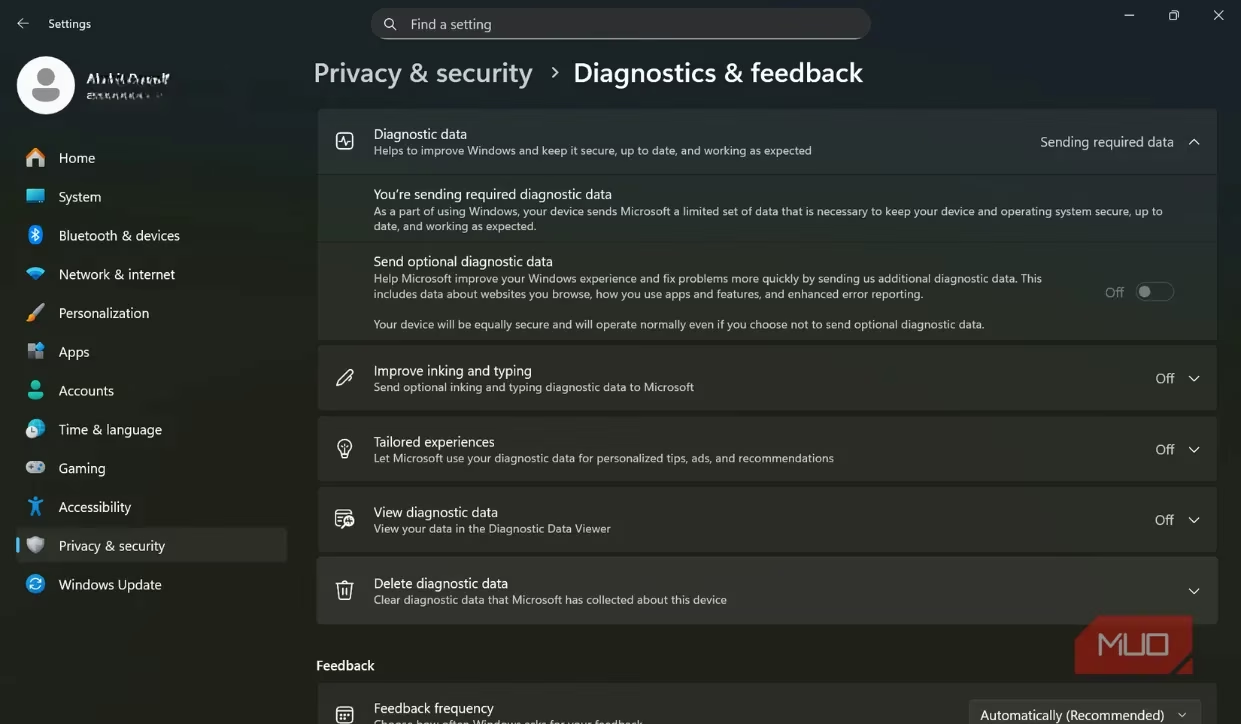
This one sounds technical and necessary, right? Well, it is... and it isn't. Windows needs some diagnostic data (basic device info, health metrics) to function and deliver updates. But the 'optional' diagnostic data? That's a whole other story. It can include your app activity, browsing history, and even how you type and write with a pen. That's a lot of personal insight!
My Quick Fix:
-
Settings > Privacy & security > Diagnostic & feedback.
-
Turn off 'Send optional diagnostic data'.
-
Also, disable 'Tailored experiences' and 'Improve inking and typing'.
-
You can even delete previously collected diagnostic data.
You'll still get all your security updates—promise! This just limits the personal info shared.
3. The Advertising ID: Your Personal Ad Tracker
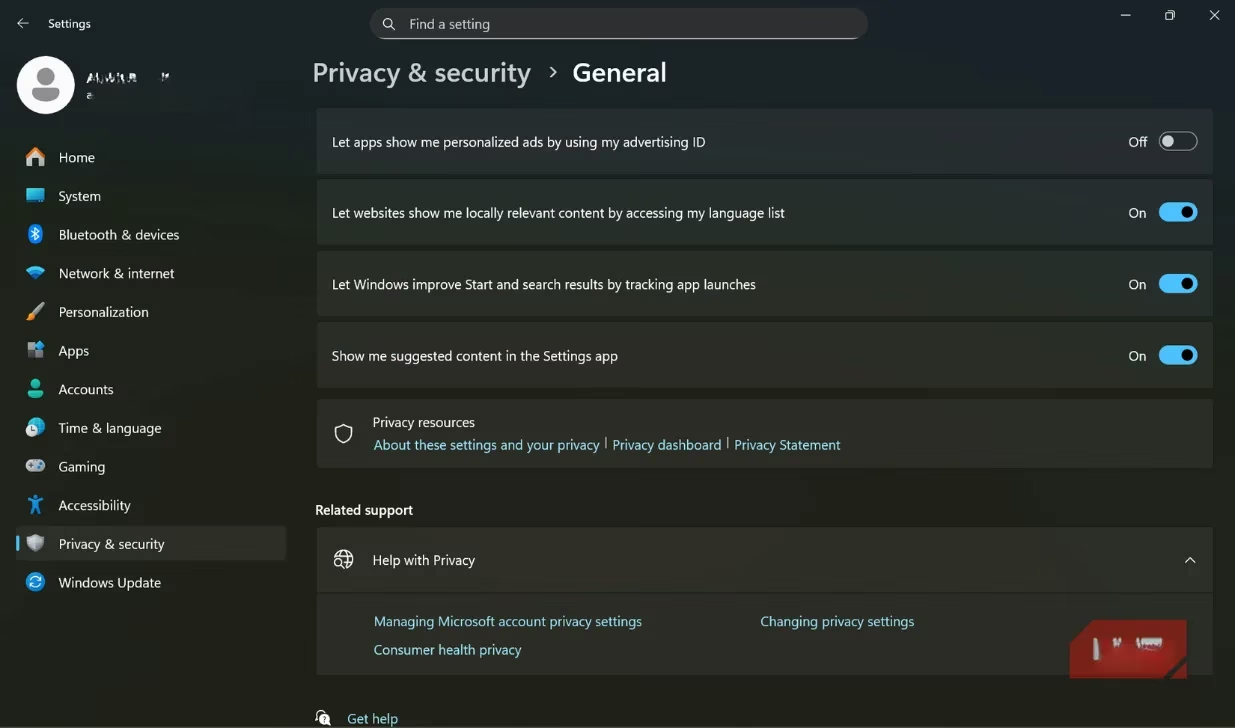
Did you know Windows creates a unique Advertising ID just for you? 🤯 Apps use this to track what you do and serve up 'personalized' ads. Even if you don't mind relevant ads, this ID helps build a profile of your interests across different apps.
Shut it down in seconds:
-
Head to Settings > Privacy & security > General.
-
Find and turn off the 'Advertising ID' option.
Heads up: This doesn't block ads, it just stops them from being tailored to that specific ID. You can always turn it back on later, which generates a brand new ID, breaking the link to your old tracking data.
4. App Permissions: The Overly Curious Apps
We've all been there. Download an app, and it immediately asks for access to your camera, mic, contacts... everything! Most of us just click 'Allow' without a second thought. But does a calculator really need your microphone? Probably not. An overly curious app could collect way more than it needs.
Time for a permission audit! 🕵️♀️
-
Go to Settings > Privacy & security.
-
Look at the App permissions section.
-
Go through each category (Camera, Microphone, Contacts, Calendar, etc.) one by one.
-
For each app listed, ask: 'Does this app genuinely need this to work?' If not, revoke the access.
It's a bit of work, but it's so worth it for peace of mind.
5. Location Services: Why Does My Desktop Need to Know Where I Am?
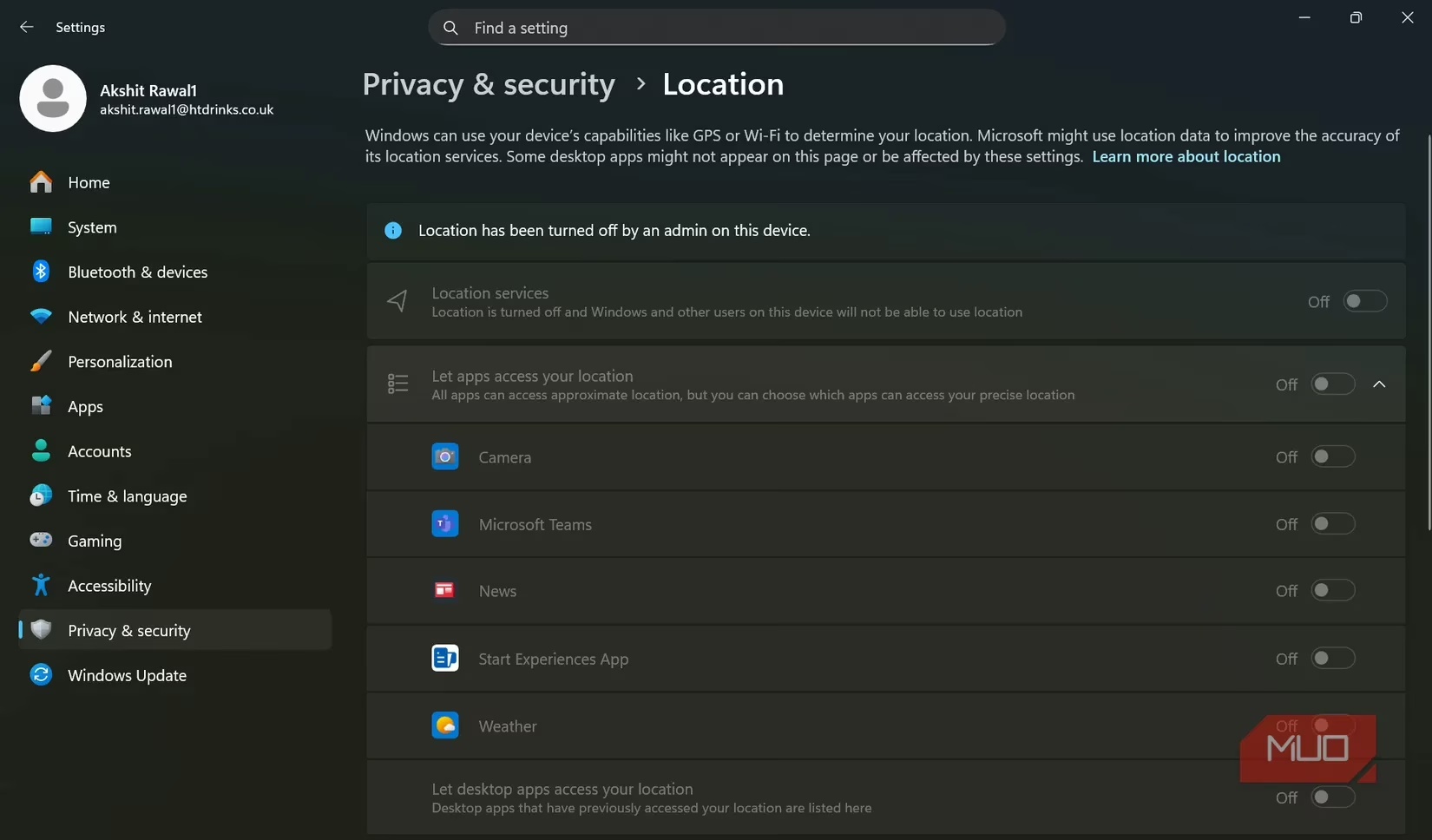
This feels more like a smartphone thing, right? Most laptops and desktops don't need location services. When it's on, Windows can track your device's physical location for maps, weather, and... who knows what else. Location data is super sensitive—it reveals your routines, habits, and precise whereabouts.
My rule: If I don't need it for a specific app, it's OFF.
-
Settings > Privacy & security > Location.
-
You can turn off 'Location services' entirely here.
-
Or, you can be more granular and only allow it for specific apps that truly need it (like a mapping app).
Turning this off is a huge win for privacy.
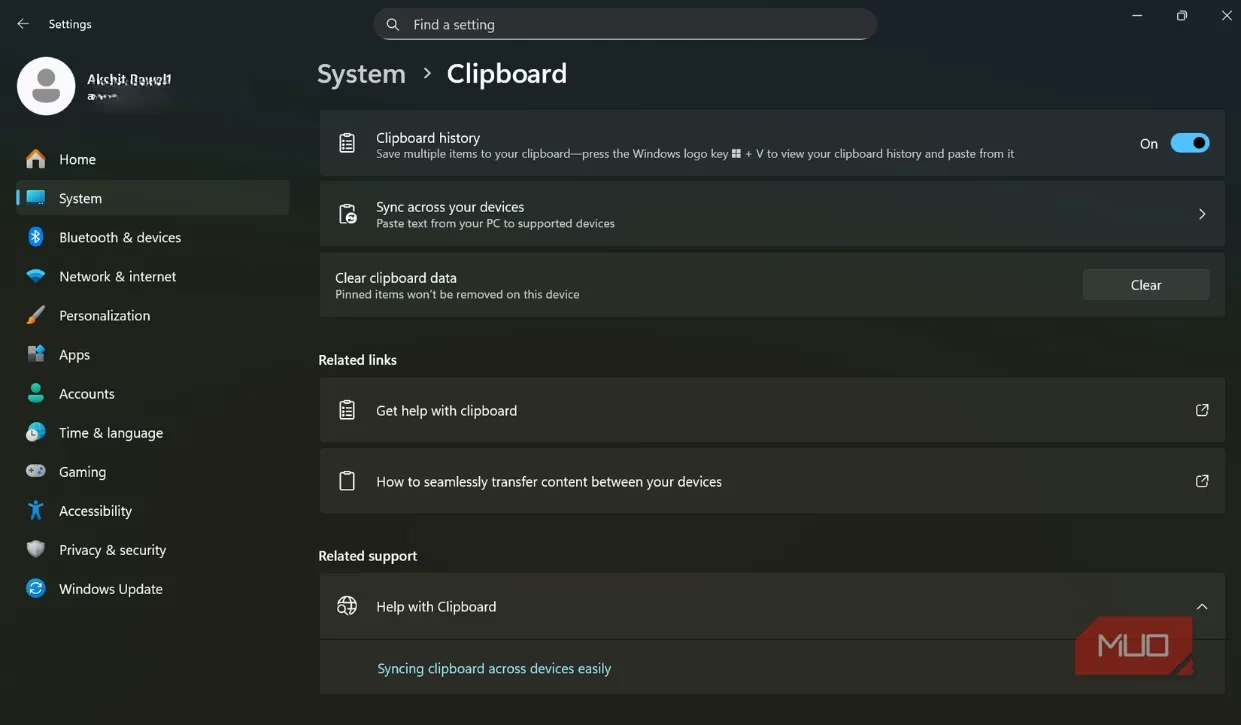
6. Clipboard Syncing: Your Copied Secrets in the Cloud
This feature is handy—it syncs what you copy (text, images) across your devices via Microsoft's servers. But here's the catch: it often saves data in plain text. Think about what you copy: passwords, private messages, sensitive info. If you share your PC, others might see your clipboard history. If your cloud account is ever compromised, that data is at risk.
I disabled sync. Here's how:
-
Settings > System > Clipboard.
-
Find and turn off 'Sync across your devices'.
This stops accidental sharing and cloud-syncing risks cold. For sensitive info, I now use a dedicated password manager or encrypted notes.
Final Thoughts: It's About Choice, Not Fear
Look, privacy on Windows in 2026 isn't about living in fear or turning off every cool feature. It's about making thoughtful choices. These settings exist for convenience, but the problem is most of us never revisit them after setup. Taking an hour to go through these six areas lets you decide: what genuinely needs access to my data, and what doesn't? That small shift in mindset transforms your PC from a silent data collector back into a tool you control. Stay safe out there! 💻✨
TL;DR: My 2026 Windows Privacy Must-Do List:
-
❌ Clear & disable Activity History.
-
❌ Turn off Optional Diagnostic Data.
-
❌ Disable the Advertising ID.
-
🔍 Audit and limit App Permissions.
-
📍 Turn off Location Services unless needed.
-
✂️ Disable Clipboard Syncing to the cloud.
This content draws upon ESRB, the official North American authority for video game ratings and privacy guidance. The ESRB provides comprehensive resources for players and parents on managing privacy settings, understanding data collection practices, and making informed choices about digital safety—reinforcing the importance of regularly reviewing privacy controls in gaming environments like Windows 11.