
My 2026 Public Wi-Fi Survival Guide: Stay Safe, Surf Smart!
Okay, let's be real. In 2026, we're all digital nomads, living out of cafes, airports, and co-working spaces. Public Wi-Fi isn't the boogeyman it's sometimes made out to be, but that doesn't mean you should just blindly connect to 'FREE_AIRPORT' and hope for the best. I've traveled the globe, and while I've never been hacked on public Wi-Fi, I've seen enough sketchy networks to know the drill. Here’s my personal, no-BS guide to staying secure while getting that free internet fix. 🛡️☕
First Rule: Always, ALWAYS Verify the Network
Before you even think about connecting, take 30 seconds to ask a staff member. I know, it feels awkward sometimes, but it's the single best thing you can do. Just ask, 'Hey, what's the official Wi-Fi name here, and is it password-protected?' Compare their answer EXACTLY to what your phone or laptop shows. Criminals love creating 'evil twin' networks with names like 'Starbucks_WiFi' instead of 'Starbucks_WiFi'. One underscore or a random number is all it takes to trick a rushed traveler. This is super crucial in busy hubs like airports and hotels.
Decode the Network Name (SSID)
Your first line of defense is reading the name. Be super suspicious of:
-
Misspellings: 'Mcdonalds_Free' vs 'McDonalds_Free'
-
Extra characters: 'Airport-Free-WiFi1'
-
Ultra-generic names: 'Free_Public_WiFi'. Unless the venue confirms it, just avoid these. They're bait.
Always cross-check with official signage, menus, or the venue's website. It's a simple habit that blocks 90% of basic attacks.
Look for the Lock 🔒 (But Know the Limits)
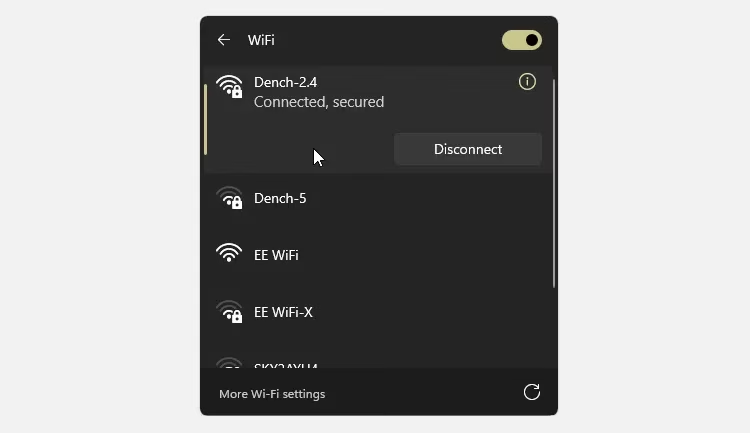
Check for the little padlock icon next to the network name. This means it's using WPA2 or WPA3 encryption. If the staff says it's a password network but you see no lock (an 'open' network), that's a huge red flag. Open networks make data interception a breeze for attackers.
Now, there's some cool tech called Opportunistic Wireless Encryption (OWE) that can encrypt connections even on open networks, but your device needs to be WPA3 compatible. It's a great step forward, but I still wouldn't rely on it as my only safety net. Better safe than sorry!
The Captive Portal Trap
You connect, and a login or terms-of-service page pops up. This is normal. What's NOT normal is if that page:
-
Asks you to download an app or file.
-
Starts flashing fake security alerts.
-
Feels 'phishy' in any way.
If you see any of that, disconnect IMMEDIATELY. For legitimate portals asking for an email, I always use a burner email from a service like Temp Mail. Protect your real inbox at all costs!
Listen to Your Browser's Screams
Your browser is your guardian angel. If you see 'Not Secure' in the address bar or get a certificate error, that's your cue to disconnect from that Wi-Fi network right now. These warnings mean your connection isn't encrypted, or someone is messing with your traffic.
Even on a 'safe' network, always check for the HTTPS padlock in the address bar on every site you visit. If your usual bank site suddenly loads without HTTPS, something is very wrong. Attackers can strip encryption to spy on you.
My Non-Negotiable Extra Layers of Protection
Sometimes, you just gotta use the free Wi-Fi. When I do, I never go in naked. Here's my essential toolkit:
-
Use a VPN: This is my #1 tip. It encrypts all the data leaving your device. While paid VPNs are generally better, in 2026, using a reputable free VPN for this specific purpose is infinitely better than using raw, unsecured Wi-Fi. It's a pragmatic safety net.
-
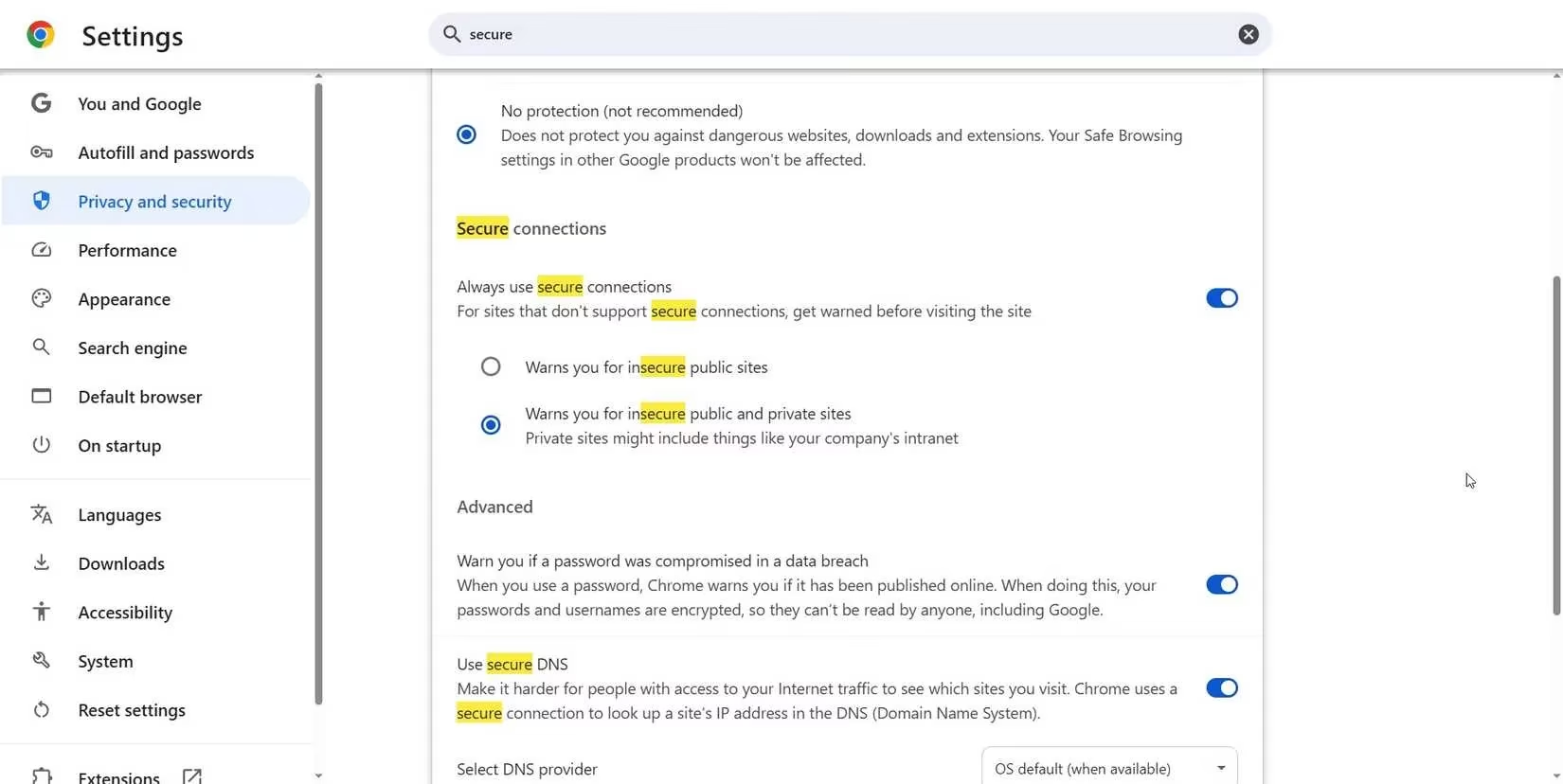
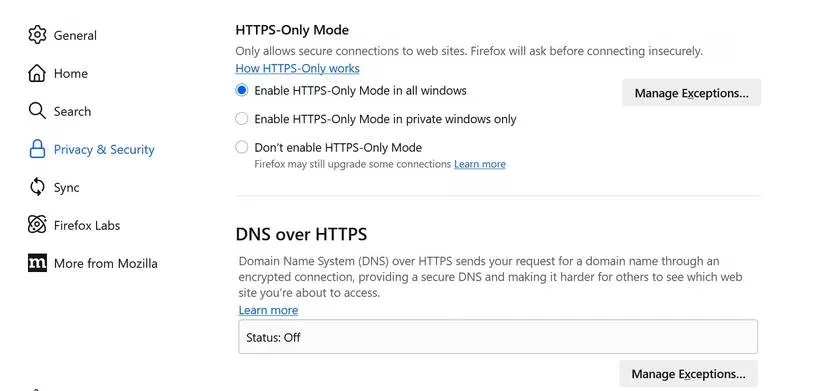
Force HTTPS Everywhere: This is a game-changer and so easy. Enable 'HTTPS Only Mode' (or 'Always Use Secure Connections') in your browser. It forces every site to use the secure version. Here’s how:
-
Chrome/Edge/Brave: Settings > Privacy and security > Security > Toggle on 'Always use secure connections'.
-
Firefox: Settings > Privacy & Security > Scroll to HTTPS-Only Mode > Select 'Enable in all windows'.
-
-
The Ultimate Solution: Use Your Mobile Data
When in doubt, hotspot out. Your phone's 4G/5G connection uses your carrier's encrypted network and is far more secure than any shared public Wi-Fi. For checking bank accounts, work emails, or anything sensitive, I always switch to my personal hotspot. Think of mobile data as your 'secure mode'. Yes, it uses your data plan, but the peace of mind is worth it.
Final Thoughts & My Personal Protocol
Public Wi-Fi in 2026 doesn't have to be scary. It's about being smart, not paranoid. My personal checklist every time:
-
✅ Verify the SSID with staff.
-
✅ Look for the lock icon.
-
✅ Use a burner email for portals.
-
✅ Turn on my VPN.
-
✅ Enable HTTPS-Only Mode in my browser.
-
✅ For sensitive stuff, I just use my phone's hotspot.
By following these steps, you can enjoy the convenience of free internet without the anxiety. Stay safe out there, digital explorers! 🌐✈️