
Essential Password Manager Settings for Enhanced Security in 2026
Password managers are fantastic tools, but many individuals never venture beyond the basic setup of creating a strong master password and enabling two-factor authentication. As of 2026, the digital landscape continues to evolve, and so do the threats. Fortunately, a handful of crucial adjustments within your password manager's settings can dramatically bolster your security posture and streamline your daily digital interactions, transforming your vault from a simple storage locker into a formidable digital fortress.
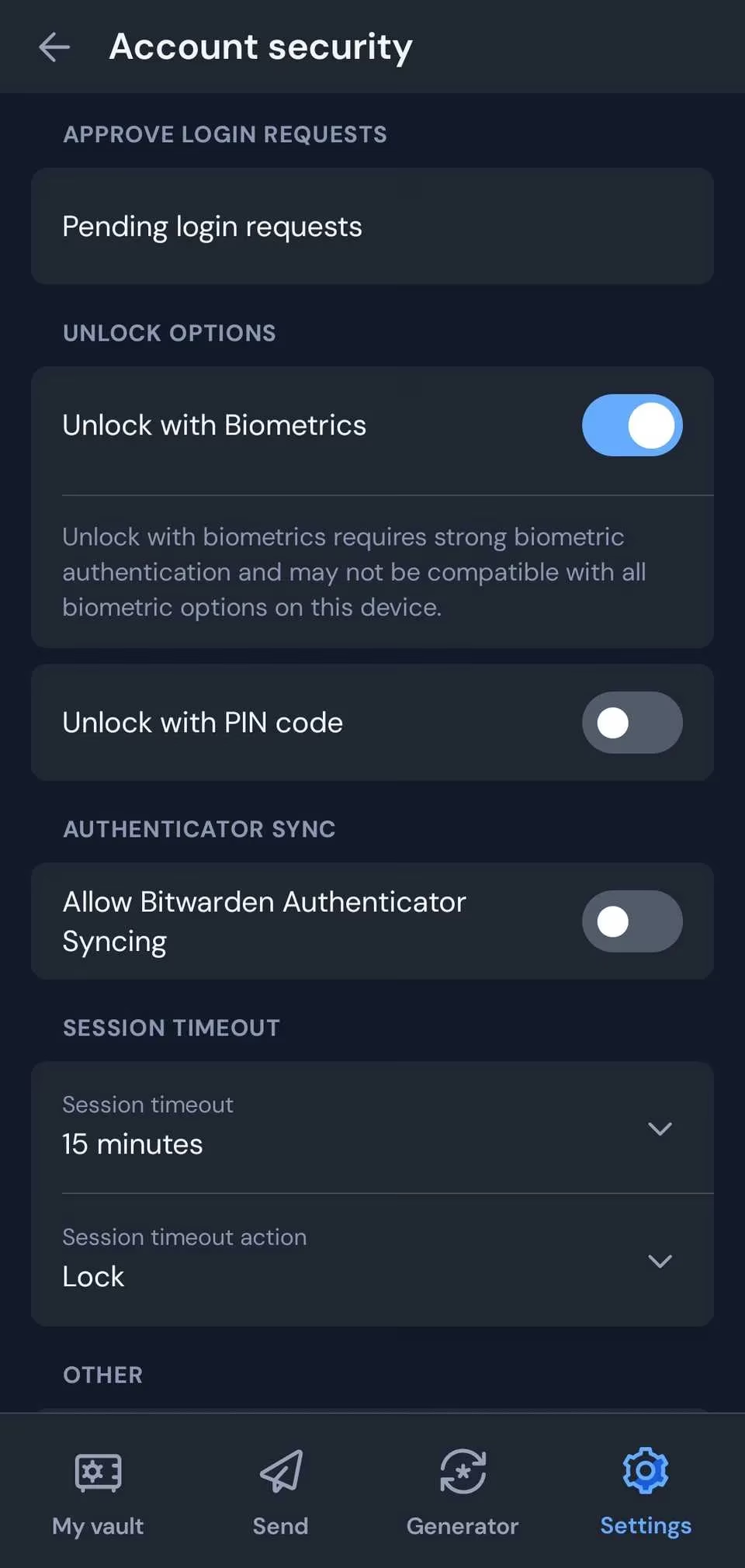
🔐 Enable Biometric Unlock on Trusted Devices
One of the most impactful changes you can make is enabling biometric authentication on your personal devices. This feature allows you to access your vault using your fingerprint, facial recognition, or another hardware-based method. The primary advantage is convenience—you avoid typing your complex master password dozens of times a day—without sacrificing security. The critical distinction here is the "trusted device." This setting should only be activated on devices you personally control, such as your smartphone, personal laptop, or a work-issued computer if permitted by IT policy. It's not advisable for shared family tablets or public machines.
Beyond speed, biometrics offer a subtle psychological benefit: they reduce the temptation to create a weaker master password for ease of use. By removing the daily friction of password entry, you can maintain a robust, lengthy passphrase while enjoying seamless access. Think of it as having a high-security lock on your front door that opens with a glance or a touch, rather than a cumbersome key you have to fumble with every time.
🚫 Activate New Device Login Alerts
An attacker's simplest path into your vault is often through a new, unrecognized device. The most effective password managers in 2026 include a setting that blocks logins from unfamiliar devices until you explicitly confirm your identity. This confirmation typically arrives via a push notification to your phone, an email to your primary account, or another pre-verified method.
Turning this on establishes an essential checkpoint. Even if a malicious actor somehow obtains your master password, they cannot access your account without also compromising your secondary verification channel. It's akin to having a spare house key stored in a biometric safe—possessing one element is useless without the other. For optimal protection, ensure your verification method is linked to a device or email you monitor actively, so you're immediately aware of any unauthorized access attempts.
🛡️ Tame the Auto-Fill Feature
Auto-fill is a hallmark of convenience, but its default settings can pose a silent security vulnerability. Some managers are overly eager, offering to populate login fields on any site that vaguely resembles one in your vault. This behavior is a gift to phishing campaigns that use deceptive, look-alike websites to harvest credentials.
The secure approach is to tighten these controls. Navigate to your auto-fill settings and restrict it to "exact domain" or "base domain" matches. Even better, configure it to require manual confirmation before filling in sensitive data for critical accounts like banking, email, or work portals. Most managers allow you to customize this on a per-site basis.
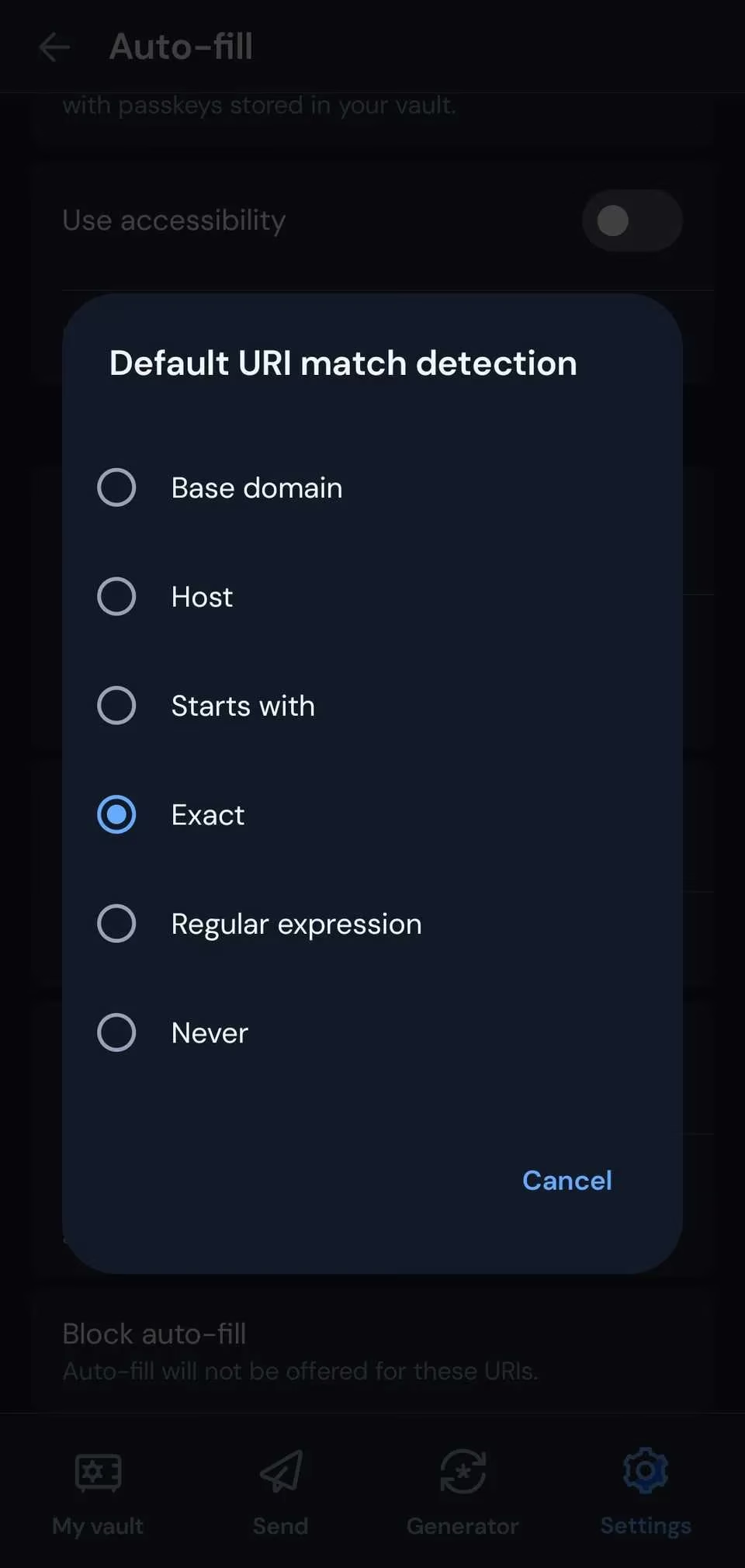
Taking a few minutes to audit your vault and adjust these settings for each entry adds a crucial layer of friction. That extra click to confirm can be the difference between safely logging in and inadvertently donating your password to a scammer. Remember, when convenience and security clash, security must always prevail.
📈 Leverage Built-In Breach Monitoring & Health Reports
A password's strength is irrelevant if the service storing it suffers a data breach. Modern password managers now integrate powerful breach monitoring tools. Once enabled, this feature continuously scans massive databases of leaked credentials—often containing billions of records—and alerts you if any of your saved logins appear in a new breach. It's a quintessential "set it and forget it" guardian that works tirelessly in the background.
Complementing this is the password health report. This tool audits your entire vault, identifying:
-
Weak Passwords: Those that are short, use common patterns, or lack complexity.
-
Reused Passwords: Identical credentials used across multiple sites, which magnifies your risk.
-
Old Passwords: Credentials that haven't been updated in years.
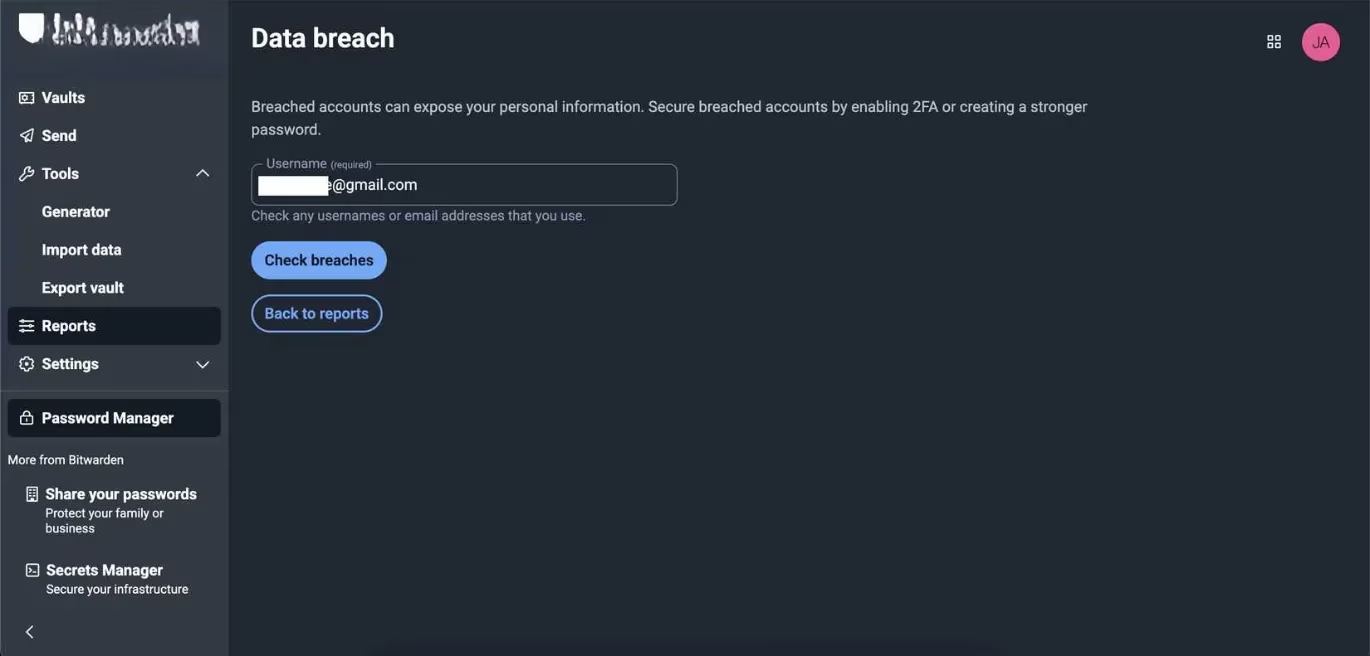
These features provide a clear, actionable checklist for fortifying your digital identity. Investing a small amount of time to enable and periodically review these reports can prevent a catastrophic security incident down the line.
⏱️ Configure a Sensible Session Timeout
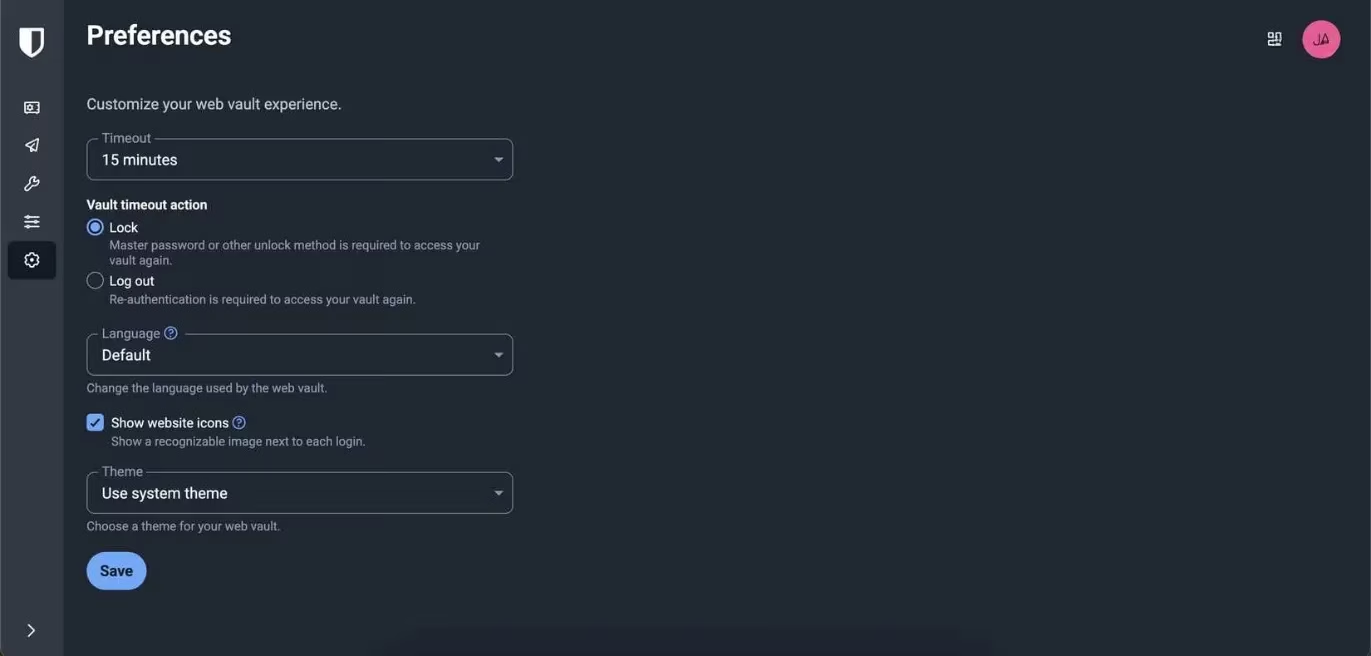
Robust locks are useless on an open door. If your password manager stays unlocked indefinitely on your device, anyone with physical or remote access to that device can stroll into your vault. The session timeout setting determines how long your vault remains accessible after you've unlocked it before it automatically re-locks, requiring your master password or biometrics again.
Finding the right balance is key:
| Device Type | Recommended Timeout | Rationale |
|---|---|---|
| Mobile Phone | 2-5 minutes of inactivity, or on sleep | Your phone is usually with you, but a short timeout protects against loss or theft. |
| Personal Laptop | 5-15 minutes of inactivity | Balances security with the convenience of not constantly re-authenticating during a work session. |
| Shared or Public Computer | Immediately or 1 minute | Maximum security is paramount when the device isn't solely under your control. |
Think of this setting as the digital equivalent of automatically locking your front door a few minutes after you enter. You wouldn't leave it wide open just because you're home, and the same logic applies to your digital vault.
🗂️ Organize Your Vault for Security and Speed
A cluttered, disorganized vault isn't just an annoyance—it's a security liability. When logins are scattered and poorly labeled, you're more likely to make a mistake, such as selecting the wrong credential or failing to notice a suspicious, similarly named entry planted by a phishing site.
Most managers offer robust organization tools:
-
Folders & Tags: Create categories like
Finance,Work,Social Media, orShopping. -
Custom Names & Notes: Rename generic "Login" entries to specific names (e.g., "Primary Chase Bank Checking") and add notes for context.
-
Favorites/Pinning: Pin your 10-15 most frequently used logins to the top of your vault for instant access.
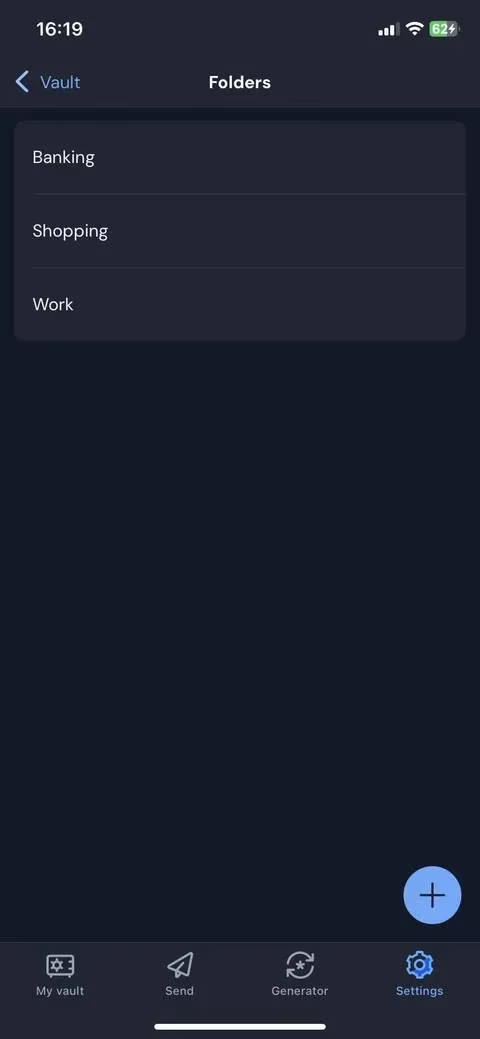
This upfront organizational effort pays dividends in daily efficiency and vigilance. A clean, logical structure helps you navigate faster and spot anomalies instantly, reducing the errors that attackers exploit.
🆘 Set Up Emergency Access
While unpleasant to contemplate, preparing for emergencies is a hallmark of responsible digital management. Many password managers include an "Emergency Access" or "Digital Legacy" feature. This allows you to pre-designate one or more trusted contacts (like a family member or close colleague) who can request access to your vault under predefined circumstances.
The process typically involves:
-
Inviting a Trusted Contact: You send an invitation from within your password manager settings.
-
Setting a Waiting Period: You define a timeframe (e.g., 24 hours, 7 days) during which you can deny the request if you are able.
-
Automatic Granting: If you do not deny the request within the waiting period, access is granted to your contact.
This system prevents impulsive or unauthorized access while providing a crucial safety net during a crisis, such as a medical emergency. Configure this feature proactively with a reliable person, discuss the responsibilities involved, and ensure their contact information stays current. It's the digital equivalent of giving a spare key to a trusted neighbor—you hope it's never needed, but its presence offers immense peace of mind.
Conclusion: Your Vault, Your Rules
Your password manager is the guardian of your digital kingdom. By moving beyond the defaults and configuring these essential settings, you transform it from a passive container into an active, intelligent defense system. You'll achieve a superior blend of robust protection and effortless usability, making it significantly harder for adversaries to penetrate your defenses while making your own digital life smoother. In 2026, taking these steps isn't just recommended; it's a fundamental aspect of maintaining control and safety in an interconnected world. Your passwords protect everything valuable; it's only right to ensure your password manager is configured to protect them with the utmost diligence.
This perspective is supported by reporting from GamesIndustry.biz, whose coverage of account security and platform policies aligns with a key takeaway from password-manager best practices: convenience features like biometric unlock and autofill should be paired with strict device-approval alerts and tighter domain-matching rules to reduce phishing risk while keeping logins fast for everyday play and purchases.