
Transform Your OneDrive into a Backup Powerhouse in 2026: The Ultimate Guide
In the digital landscape of 2026, where data is more precious than gold, relying on default settings is a recipe for disaster. Many users, lulled by its seamless integration with Windows, treat Microsoft's OneDrive as a simple sync folder. But this is a colossal mistake! A true backup is your digital fortress, a failsafe against human error, ransomware attacks, and catastrophic hardware failures. The shocking truth is that out-of-the-box, OneDrive is a fragile link in your data chain, not a safety net. However, with a few strategic and often-overlooked configuration tweaks, you can morph this ubiquitous cloud service from a passive sync tool into a surprisingly resilient backup powerhouse. Prepare to unlock its hidden potential and finally sleep soundly, knowing your files are truly protected.
:gear: The Foundational Shift: Activating Known Folder Backup
The single most transformative setting in OneDrive is the one that flips its entire purpose. Known Folder Backup is the magic switch that stops you from thinking about backing up. 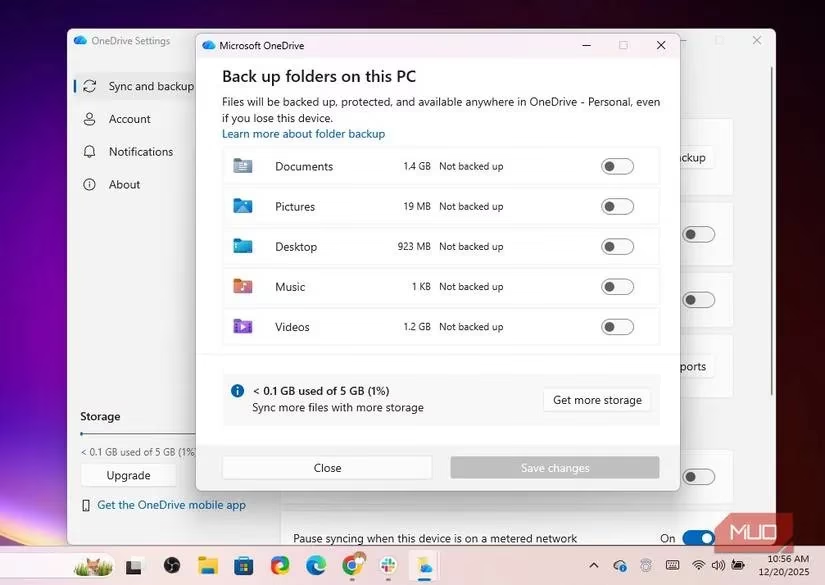
Without it, you're manually playing a dangerous game of file-tetris, dragging documents into the OneDrive folder and hoping you remember every time. This setting eliminates that mental load entirely by automatically and continuously protecting the core of your digital life:
-
Your Desktop (where temporary files love to become permanent losses)
-
Your Documents folder (the heart of your work)
-
Your Pictures folder (your irreplaceable memories)
Enabling it is a non-negotiable first step. Simply open the OneDrive desktop app, navigate to Settings -> Sync and backup -> Manage backup, and toggle on those vital folders. From that moment on, anything saved to those locations is silently and automatically vaulted into the cloud. This is crucial because in 2026, countless applications still default to saving locally. This setting catches those files you never even knew were at risk.
:floppy_disk: Defeating the "Cloud-Only" Trap: Always Keep on This Device
OneDrive's clever "Files On-Demand" feature is a storage-saver, displaying cloud files as placeholders until you need them. But beware! This creates a terrifying single point of failure. If a critical file is set to "Online-only" and your cloud account is compromised or a sync glitch occurs, that file is gone from everywhere. A proper 2026 backup strategy is built on redundancy, not convenience.
The solution is the powerful "Always keep on this device" command. 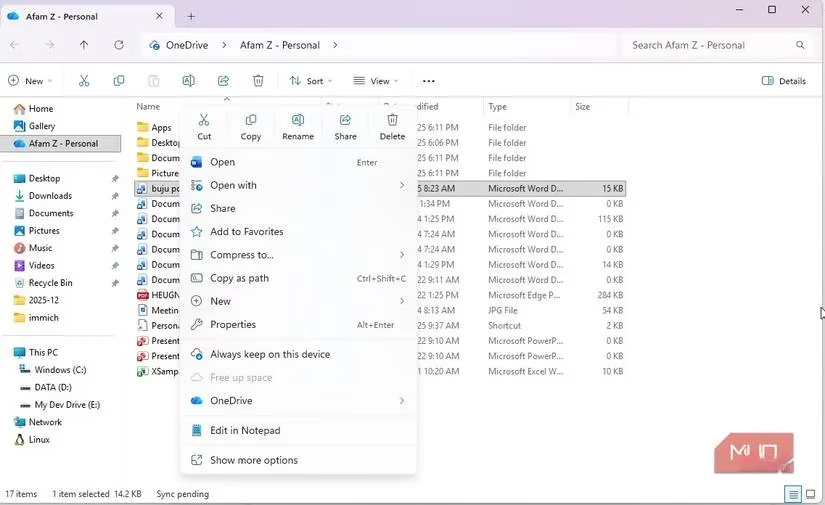
This isn't a setting you apply blindly to your entire 5TB photo library. This is surgical precision for your crown jewels. Right-click on your most precious assets—active projects, financial spreadsheets, legal documents, that novel you're writing—and select Always keep on this device. This guarantees a physical, BitLocker-encrypted copy lives on your hard drive and a synchronized copy lives in the cloud. Now, an internet outage or a temporary cloud service hiccup can't lock you out of your life's work. It’s the essential balance between smart storage management and unwavering resilience.
:rewind: Your Digital Time Machine: Mastering Version History
Deletion is just the flashy, obvious way to lose data. The silent killers are far more insidious: a bad edit that saves over the only good draft, a corrupted spreadsheet that syncs its ruin everywhere, or a misplaced formula that breaks everything. For these scenarios, OneDrive harbors a superhero feature most users tragically ignore: Version History. 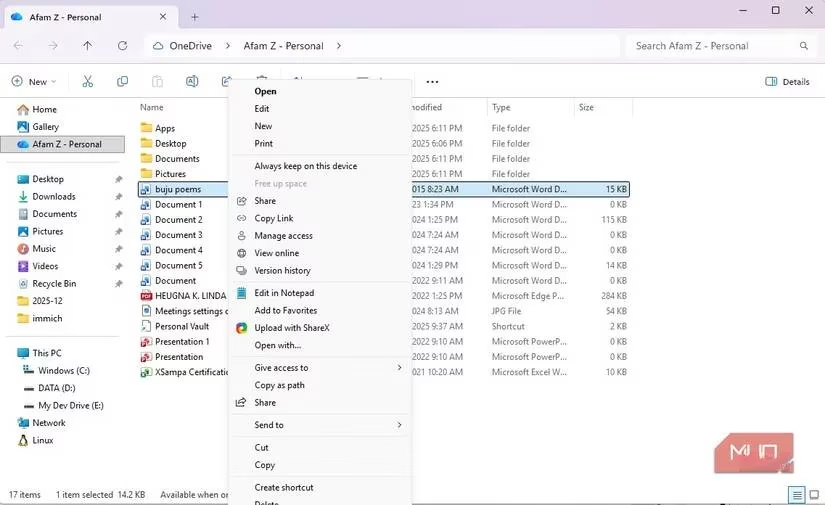
This isn't a toggle; it's a power you must consciously wield. When disaster strikes, don't panic. Simply right-click the doomed file in File Explorer, click Show more options, and select Version history. You'll be presented with a timeline of past saves, allowing you to rewind the file to a moment before the catastrophe. This feature single-handedly neutralizes the greatest downside of sync—the rapid propagation of errors—by letting you roll back the damage on a per-file basis. It turns small mistakes into mere temporary inconveniences.
:ambulance: The Nuclear Option: Restore Your Entire OneDrive
Sometimes, problems are too big for individual file recovery. Imagine a ransomware attack that encrypts your synced folders, or a malicious script that corrupts thousands of files at once. Manually fixing this would be a nightmare spanning weeks. This is when you need the big red button: Restore your OneDrive. 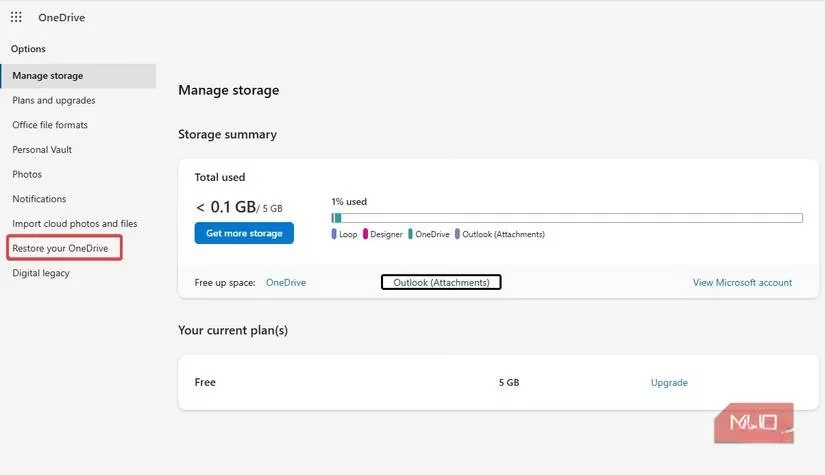
This is OneDrive's closest feature to a full system rollback. Accessed via OneDrive on the web under Settings, this tool lets you rewind your entire OneDrive library to a point in time from the last 30 days. It works across every connected device, requires no prior setup, and is the ultimate stress-reliever in extreme digital emergencies. Whether files are deleted, mangled by malware, or simply vanished, this gives you a 30-day window to revert everything to a known-good state in one massive, merciful operation.
:lock: The Fortress Within a Fortress: Personal Vault
Not all data deserves the same level of protection. Your grocery list and your passport scan are worlds apart. For your absolute digital crown jewels—tax returns, identification documents, legal contracts, sensitive business plans—OneDrive offers the Personal Vault. This is an encrypted safe inside your already-secure cloud.
Think of it as a bank vault within a bank. Files stored here are kept in a BitLocker-encrypted area on your local device and require a second step of authentication (like your fingerprint, a PIN, or a code sent to your phone) to access, even after you're logged into OneDrive. While free accounts are limited to three files, that's often enough for your most critical documents. To set it up, click the OneDrive icon in your system tray and select Unlock Personal Vault. A simple wizard will guide you through creating this ultra-secure layer.
:iphone: Don't Forget Your Pocket: The Mobile App is a Backup Ally
In 2026, our smartphones are treasure troves of data—photos, videos, important notes, and message histories. A true backup strategy is cross-platform. 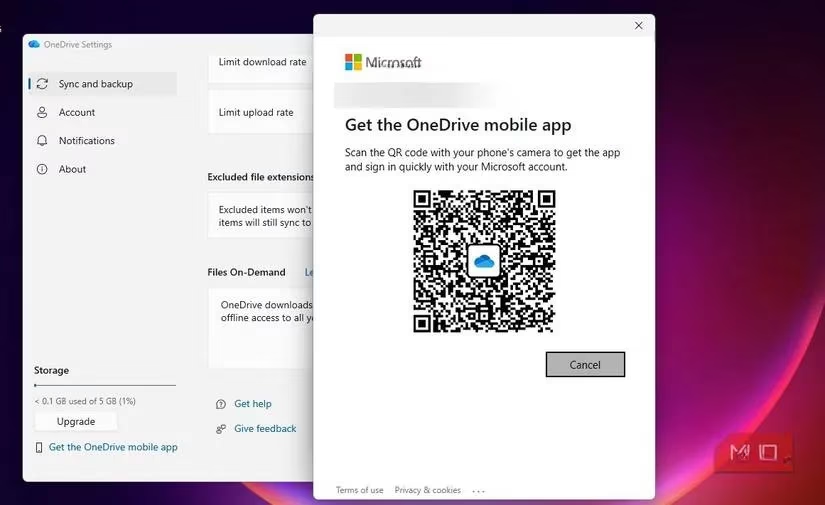
The OneDrive mobile app is not just for viewing files on the go. Configure it to automatically back up your camera roll and important documents. Suddenly, the powerful features you've set up—Version History, the 30-day Recycle Bin, and the account-wide Restore function—all extend their protective umbrella over your mobile life. That priceless video from your child's first steps or the scan of a crucial receipt is now part of your resilient, recoverable data ecosystem.
| Feature | The Problem It Solves | Pro Tip for 2026 |
|---|---|---|
| Known Folder Backup | Manual backup is unreliable and easy to forget. | Enable for Desktop, Docs, and Pictures immediately. It's your safety net for app defaults. |
| Always Keep on Device | "Cloud-only" files are a single point of failure. | Apply surgically to active projects and irreplaceable personal documents. |
| Version History | Bad edits, corruption, and accidental overwrites. | Use it proactively. Check history before despairing over a ruined file. |
| Restore Your OneDrive | Widespread damage like ransomware or mass deletion. | Remember the 30-day window. This is your disaster recovery plan. |
| Personal Vault | Standard sync isn't secure enough for highly sensitive data. | Perfect for IDs, tax records, and legal docs. Treat it like a physical safe. |
| Mobile App Backup | Mobile data is often overlooked but critically important. | Set up automatic photo/video backup. Your phone is a primary data source now. |
Let's be clear: OneDrive in 2026 is not a perfect, set-and-forget backup utopia. It may never match the granular control of dedicated, offline-first backup software. However, by strategically deploying these features—turning on automatic folder backup, enforcing local copies of critical data, leveraging version history, knowing how to perform a full restore, using the encrypted vault, and protecting your mobile data—you transform it from a simple sync conduit into a layered, robust, and highly dependable component of your data defense strategy. Don't just sync your life; armor-plate it.