
My Journey to Reclaiming Privacy in Gmail: A Gamer's Guide to Shutting Down Data Trackers
As a pro gamer, my life is built on split-second decisions and managing risks. I know when to push an objective and when to retreat. Lately, I've applied that same mindset to my digital life, especially my inbox. For years, I blindly trusted Gmail with my data, not realizing that every email open was like leaving a trail of breadcrumbs for marketers to follow. Google might not be reading my emails for ads anymore, but they're still watching—tracking when I open messages, what device I'm on, and piecing together a profile of my habits. That's a serious trade-off for convenience. It felt like playing a ranked match without checking the minimap; you're just asking to get ganked. So, I decided to level up my privacy settings and take back control. Here's my playbook.
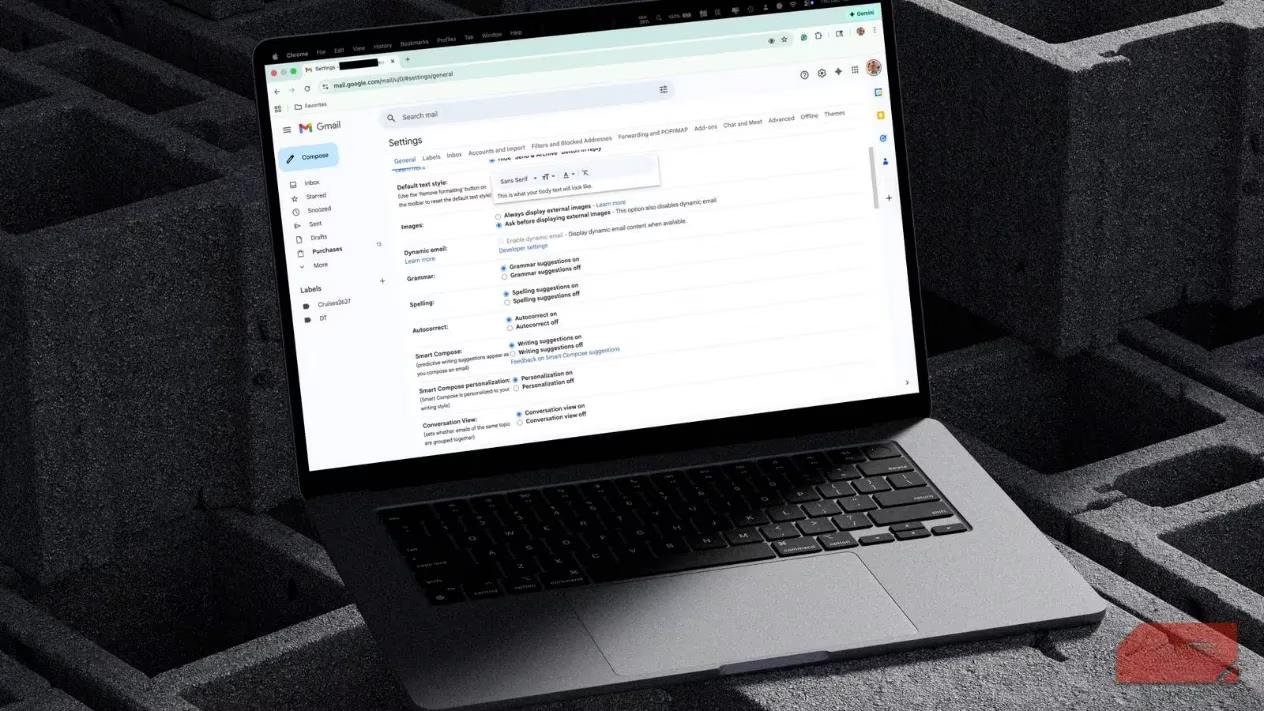
The first and most crucial move in my privacy strategy was dealing with those sneaky image tracking pixels. You know, those invisible 1x1 images hidden in marketing emails that ping a server the moment you open the message. It's a classic info-gathering tactic, logging your IP address, device, location, and time. For a gamer, that's like having your opponent see your exact position on the map at all times—totally unfair. The fix? Enabling Gmail's "Ask Before Displaying External Images" feature. This is the ultimate counter-play.
How to Activate Image Blocking (The Anti-Tracker):
-
Open Gmail in your browser (this is your command center).
-
Click the Settings gear icon in the top-right corner.
-
Select "See all settings."
-
Scroll down to the "Images" section.
-
Toggle "Ask before displaying external images" to ON.
-
Don't forget to hit "Save Changes" at the bottom—no save, no gain!
Once this is live, Gmail stops auto-loading images. Instead, you get a "Display images below" prompt. This gives you the power to choose what loads, keeping those tracking pixels at bay. It's a simple setting with a huge impact, and it works on Gmail's web, iOS, and Android apps. Pro tip: This also reduces the risk of loading malware from sketchy senders. Safety first, folks!
But winning a match takes more than one good move. You need map control and vision. The next step is to clean up your activity logs. Google's My Activity dashboard is where all your data hangs out. I headed to my Google Account's Activity Controls page and made some key adjustments:
| Setting | My Action | The Result |
|---|---|---|
| Web & App Activity | Toggled OFF | Stops Google from saving my searches and activity from apps & sites. |
| Location History | Toggled OFF | Prevents a continuous log of where I go (no need for that). |
| Auto-delete | Set to 3 months | Old activity data gets wiped automatically, no manual cleanup needed. |
This is like clearing your match history regularly—it keeps your profile clean and limits what data is out there. Remember, Gmail itself doesn't auto-delete old emails, but you can create a killer filter for that. Here's my go-to setup for a clean inbox:
The "Nuke Old Emails" Filter:
-
In Gmail's search bar, click "Show search options."
-
In the "Has the words" field, type the magic command:
older_than:2y -
Click "Create filter."
-
Check the box for "Delete it."
-
Click "Create filter" again to confirm.
Boom! Emails older than two years will now auto-send to Trash and vanish permanently after 30 days. It's a set-it-and-forget-it strategy for inbox hygiene.
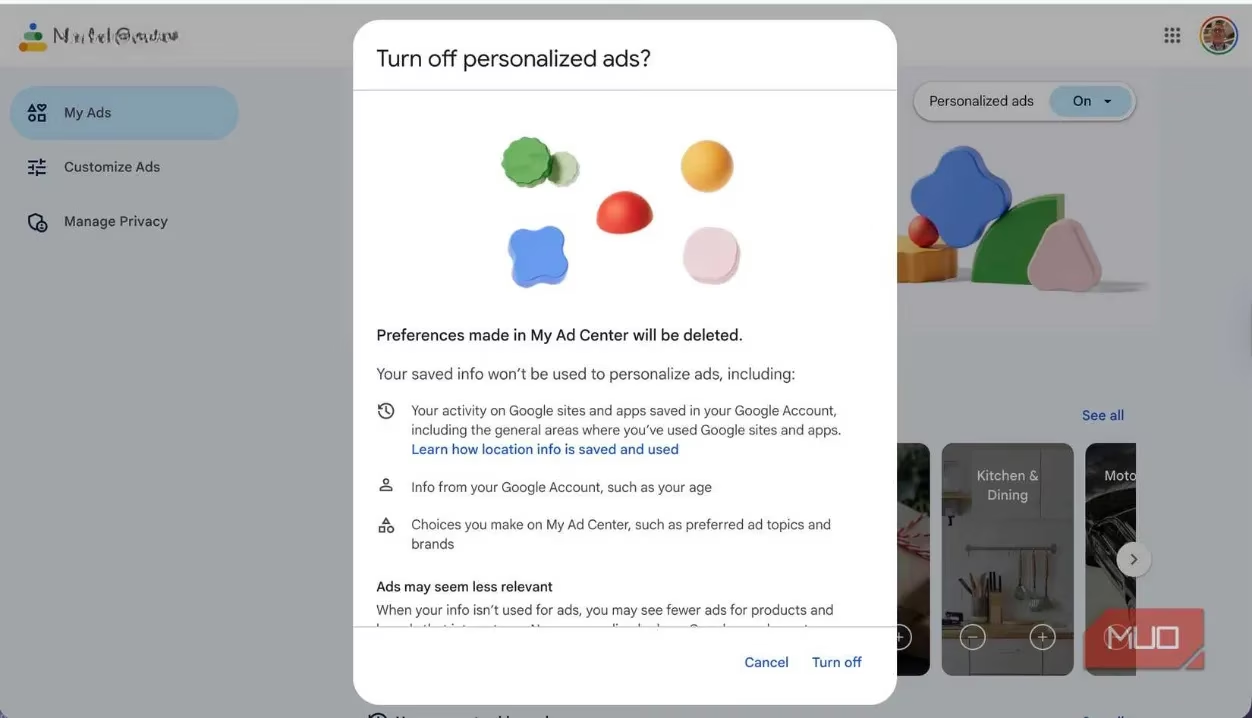
The final boss in this privacy raid is ad personalization. I don't need ads tailored from my email habits following me around the web like a creepy stalker. To shut this down, I visited My Ad Center in my Google account. I simply toggled "Personalized ads" to OFF and confirmed. This tells Google to stop using my info, activity, and preferences to tailor ads across YouTube, Search, and Maps. If you still want some ads but on your terms, you can go into "Customize Ads" to block specific topics like gambling or alcohol—very useful for keeping the feed clean.
Look, Gmail is still the GOAT for email because its features are straight fire. But in 2025, you can't just accept the default settings and hope for the best. You have to tweak your config for optimal performance, both in-game and online. By enabling image blocking, shutting down activity tracking, auto-deleting old data, and turning off ad personalization, you significantly reduce your digital footprint. It's about playing smart and protecting your data like it's your most valuable loot. Don't forget to check out Gmail's new "Manage Subscriptions" feature to keep newsletter clutter in check. Now, go configure those settings and game on—privately. :shield: :video_game: