
Lock Down Your Files for Free in 2026: Ultimate Guide to Password Protection Without Spending a Dime
Hey everyone! Let's talk about something super important in 2026—keeping our digital stuff safe without breaking the bank. Seriously, you don't need to spend a single cent to protect your documents, photos, or any sensitive data. With the right free tools, you can lock everything down tight and share files with total confidence. I've been exploring these methods, and trust me, the level of security you can get for free now is absolutely wild. 🚀
🗜️ Start with Compression Software: WinRAR & 7-Zip
First up, let's talk about the classics that are still going strong. If you want to keep files private, compression software is your best friend. WinRAR and 7-Zip give you fast, powerful options for creating password-protected archives. I mean, so many people still rely on these tools because they're just so quick and simple to use.
WinRAR is the OG. It provides super straightforward controls and rock-solid security features. Here's the drill:
-
Install WinRAR (the free version is totally fine for security).
-
Right-click any file or folder.
-
Pick "Add to archive...".
-
Set your password and, this is key, enable "Encrypt file names".
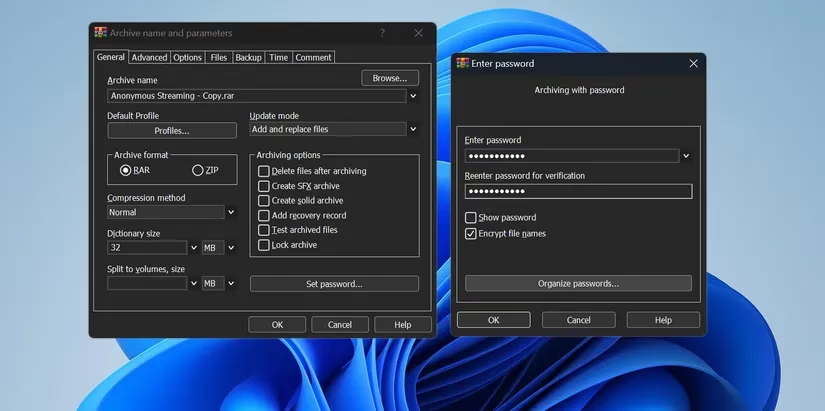
Why is that last step so crucial? It hides both the contents AND the list of files inside. So, even if someone gets their hands on your archive, they can't even see what's in there without the password. No peeking! 👀
In 2026, with automated systems constantly sniffing for data, having both a password AND encryption is non-negotiable. WinRAR uses AES-256 encryption—the same gold standard trusted by banks and big tech companies for their most sensitive info. If someone tries a brute-force attack, WinRAR's system slows them down to a crawl, making it practically impossible. And yeah, you can keep using the free version forever; you just get a friendly reminder to buy it, but all the security features are fully unlocked.
7-Zip is the lightweight, 100% free, open-source champion. The process is almost identical:
-
Install 7-Zip.
-
Right-click your target file/folder.
-
Select 7-Zip > "Add to archive...".
-
Set your password and, again, check "Encrypt file names".
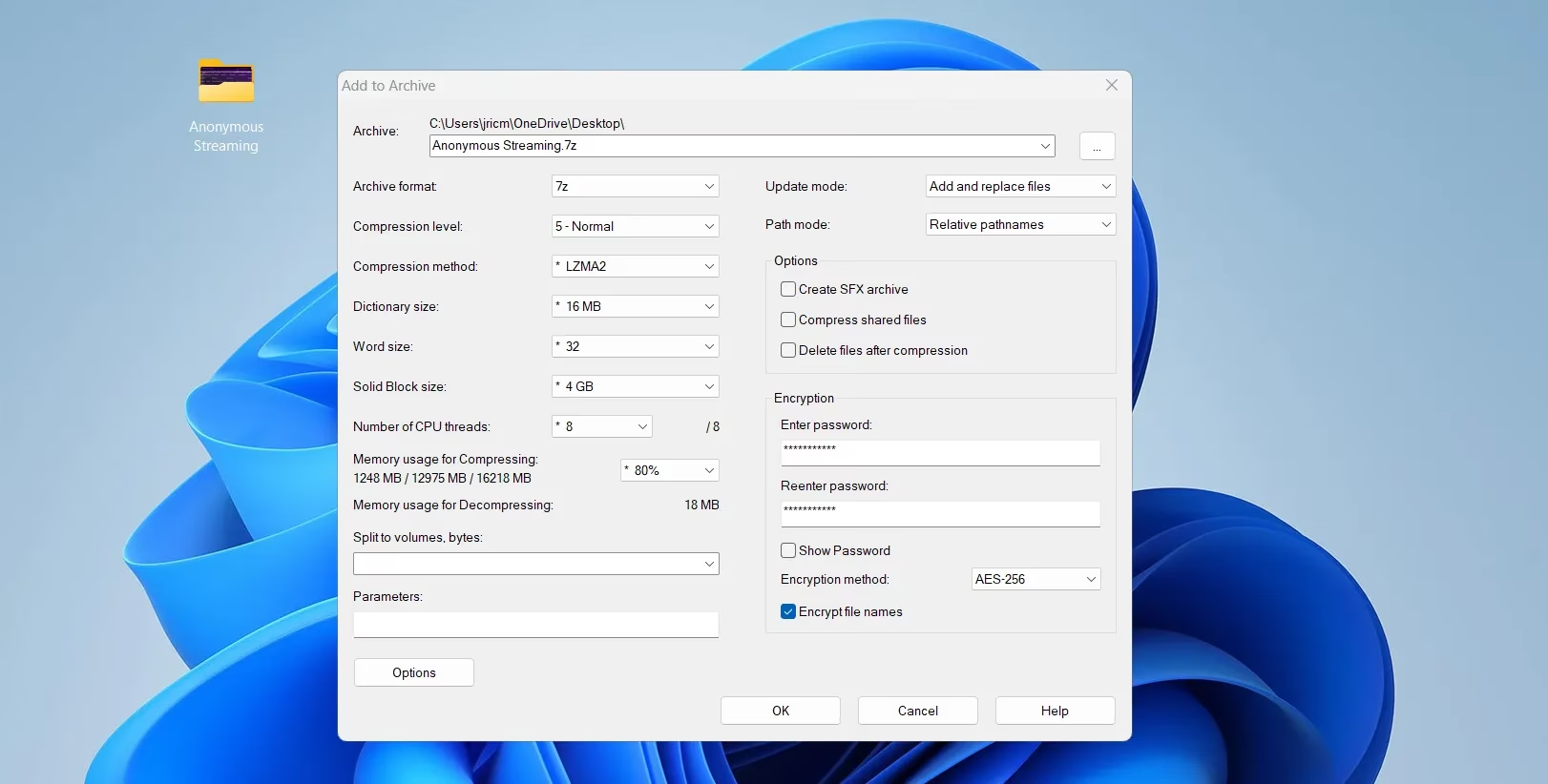
7-Zip also uses that beefy AES-256 encryption. I personally love using the .7z format because it compresses files like crazy, making them much smaller without losing quality. This is a game-changer for uploading large media files or creating backups—saves bandwidth and adds a strong layer of security. 😎
One killer feature of 7-Zip is the ability to create self-extracting encrypted archives (.exe). You send this single file to someone, and they only need the password to open it—no need for them to install 7-Zip or any other software. It's incredibly convenient for sharing with less tech-savvy friends or colleagues.
📄 Password-Protect Your Documents Directly (Office & LibreOffice)
When you're working on a contract, a budget spreadsheet, or a business proposal, you don't always need to make an archive. Sometimes, you just want to lock the document itself. Good news: both Microsoft Office and the free LibreOffice have this built right in!
For Microsoft Office (Word, Excel, PowerPoint):
-
Open your file.
-
Click File > Info > Protect Document (or Workbook/Presentation).
-
Select "Encrypt with Password".
-
Enter and confirm a strong password.
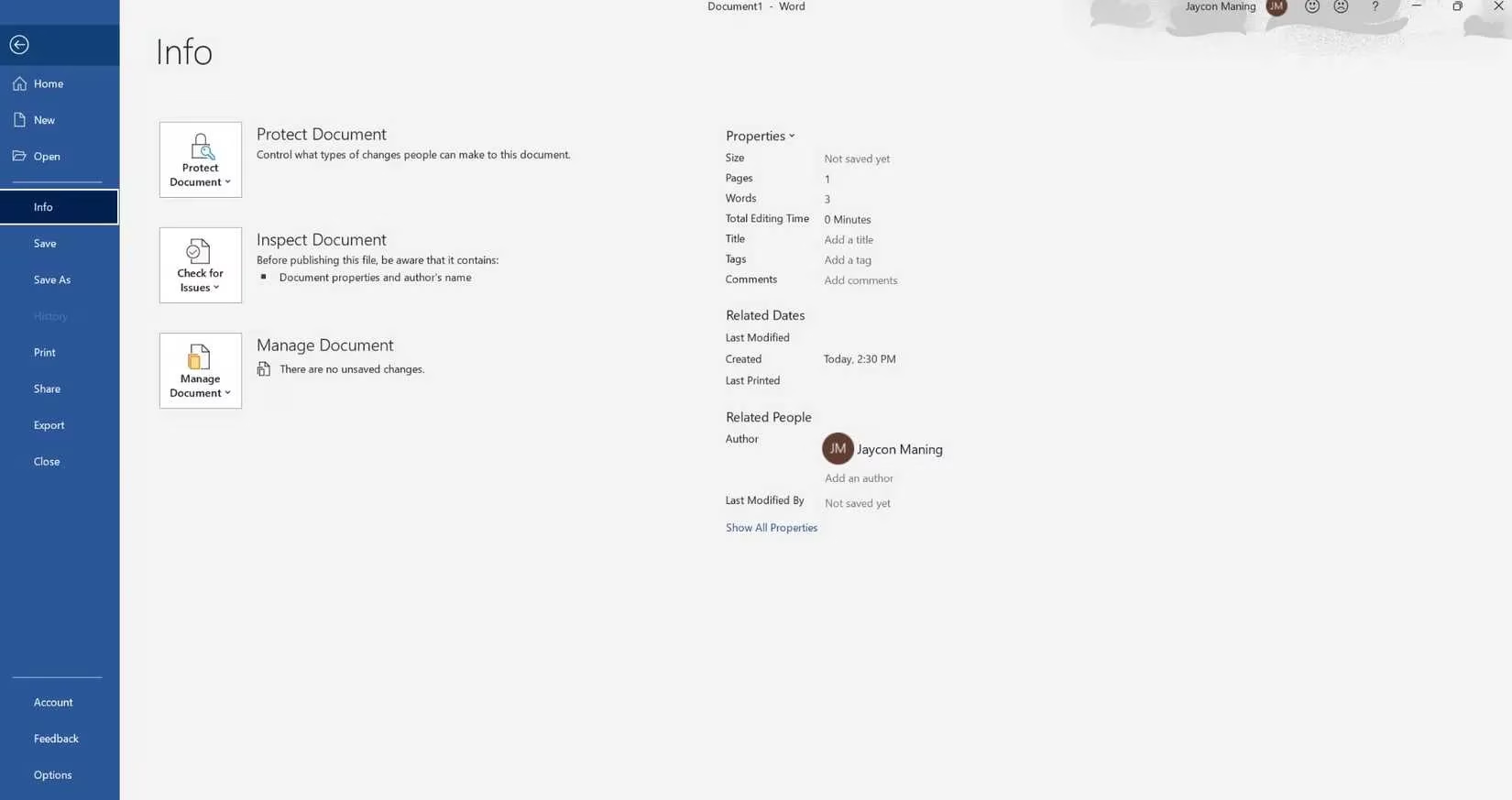
Boom. Office encrypts the entire document using AES. No password? No access. Period. It's that simple and integrated.
LibreOffice, the amazing free alternative loved by students and professionals worldwide, is just as easy:
-
Go to save your document (File > Save As).
-
Check the box that says "Save with password".
-
Enter your strong password when prompted.
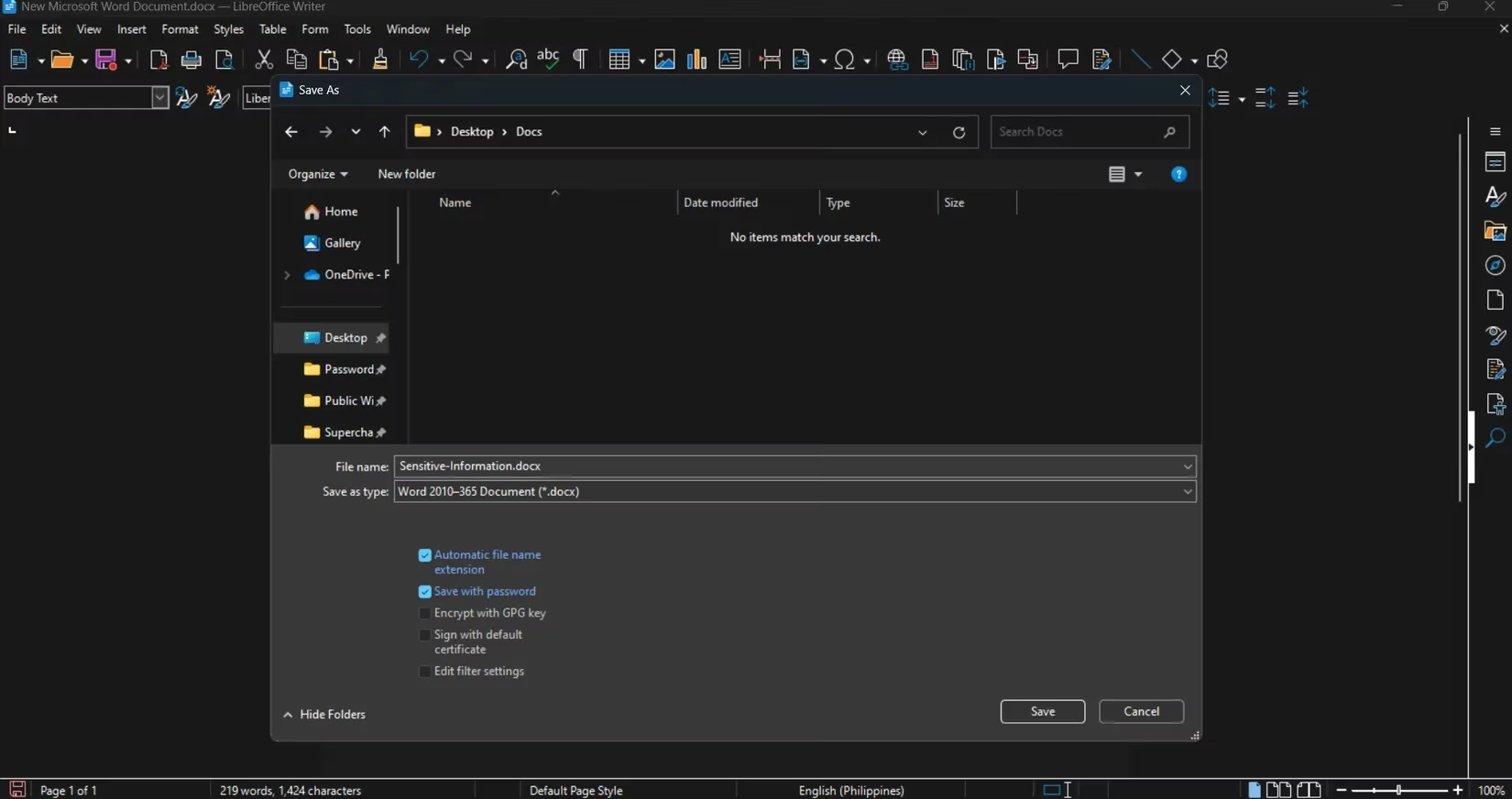
LibreOffice uses advanced encryption too, and its security in 2026 is on par with—or even better than—many paid solutions. HUGE WARNING THOUGH: If you forget the password, neither Microsoft nor LibreOffice can recover it for you. There's no backdoor. So, please, use a password manager (there are great free ones) to store these passwords safely!
🔐 Next-Level Security: PGP Encryption with Kleopatra
Alright, for the stuff that really needs to stay private—confidential images, sensitive legal docs, personal journals—we step it up a notch. Enter PGP (Pretty Good Privacy) encryption and a free tool called Kleopatra. This is the kind of security privacy experts and even some government folks use. It's based on a "key pair" system, which sounds complex but is manageable.
Kleopatra comes as part of the Gpg4win package. Download it, install it, and let's get started.
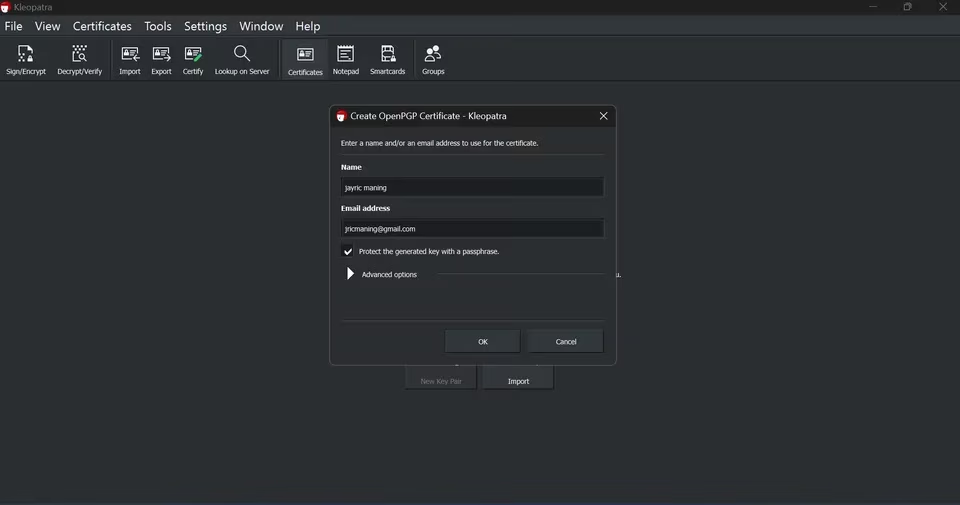
- Create Your Key Pair: When you first launch Kleopatra, it will guide you to create your personal key pair. You'll get a private key (which you keep secret and safe on your machine) and a public key (which you can give to anyone).
-
Exchange Public Keys: To send an encrypted file to your friend Alex, you need Alex's public key. Alex sends it to you, and you import it into Kleopatra. You give Alex your public key in return.
-
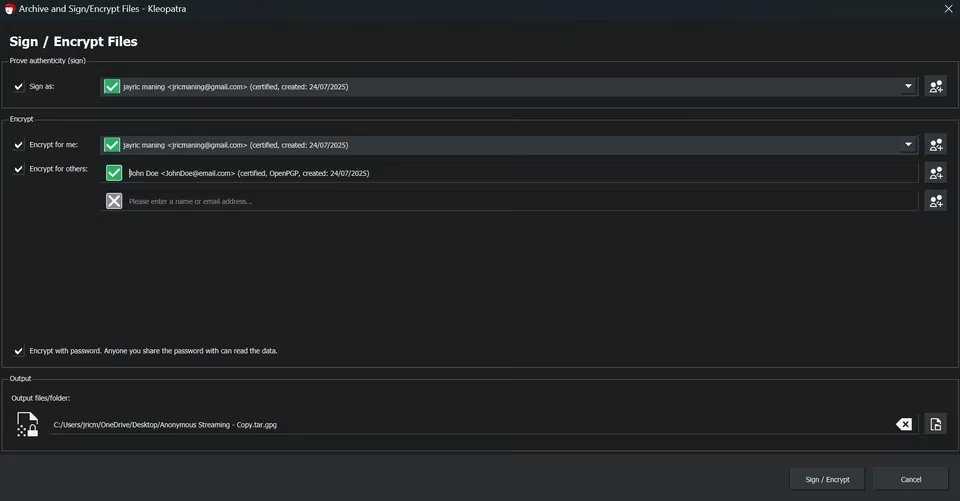
Encrypt and Send: Right-click the file you want to send (a photo, a .doc, anything), go to More GpgEX options > Sign and Encrypt. Choose Alex's public key from your list. Kleopatra will create a locked file (usually ending in .gpg).
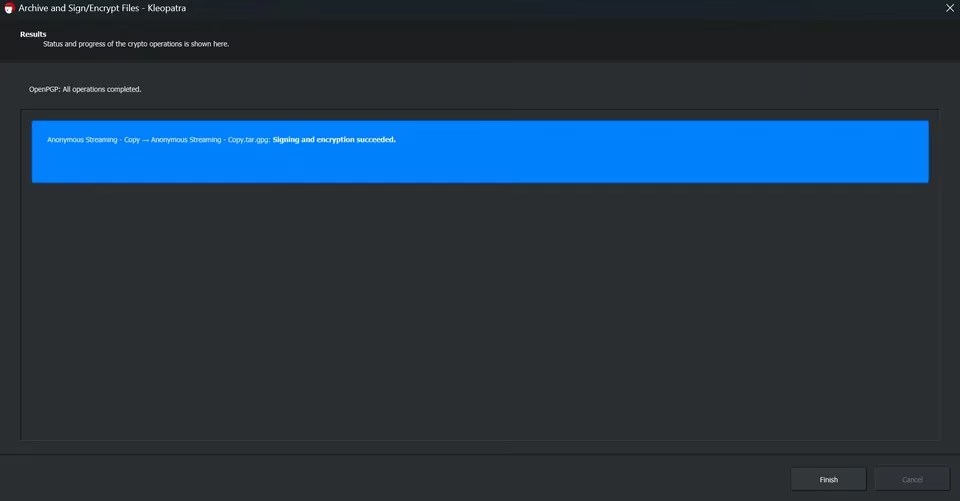
- Decrypting: When Alex receives the file, they simply double-click it. If they have Kleopatra and their private key (which they should!), it decrypts automatically. Even if someone intercepts the file during email or cloud upload, it's just gibberish to them.
Yes, Kleopatra has a bit of a learning curve compared to just typing a password. But once you wrap your head around the public/private key concept, it becomes one of the most powerful and satisfying ways to take back your privacy. It's like having your own digital seal. 🏛️
Quick Comparison Table
| Tool | Best For | Cost | Key Feature | Ease of Use |
|---|---|---|---|---|
| WinRAR / 7-Zip | Archiving & compressing multiple files, general sharing. | Free (WinRAR has nag screen) | AES-256 encryption, hides filenames. | Very Easy |
| MS Office / LibreOffice | Protecting individual documents (text, spreadsheets). | Free (Libre) / Paid (MS 365) | Built-in, no extra software needed. | Extremely Easy |
| Kleopatra (PGP) | High-security needs, confidential 1-to-1 sharing. | 100% Free | Military-grade encryption, key-based system. | Moderate (Learning Curve) |
So there you have it! A complete, free toolkit for 2026. You can mix and match these based on what you're protecting:
-
Quick & Easy? Use 7-Zip or your office suite.
-
Sending to someone who might not have the software? Make a 7-Zip self-extracting archive.
-
Top-secret stuff? Go with Kleopatra and PGP.
The bottom line is that you have zero excuses for leaving your files unprotected. With these trusted, free tools, you can lock down your digital life, share files with peace of mind, and keep prying eyes out—all without spending a single penny. Now go forth and encrypt! 🔒